
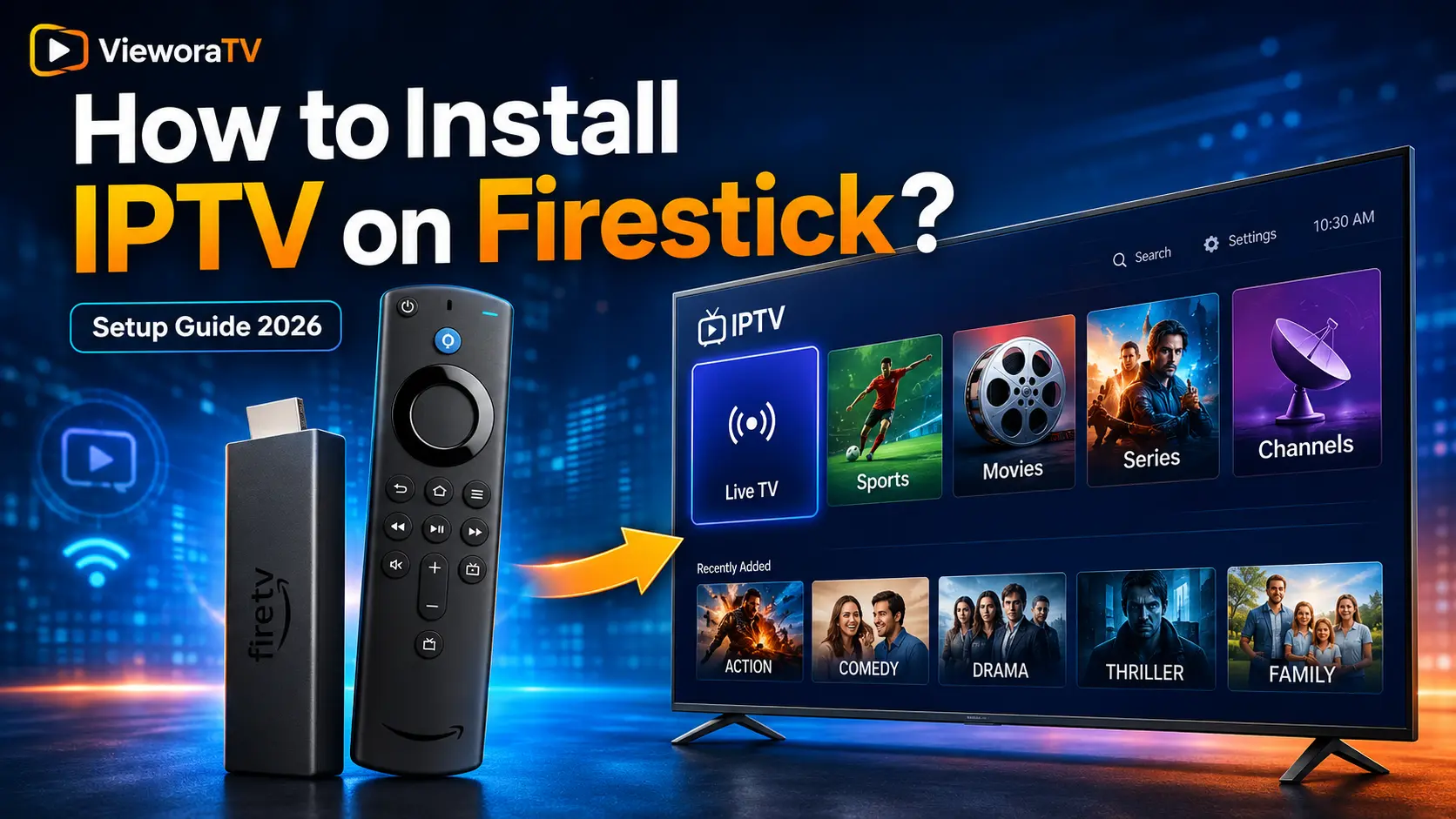

Ultimate IPTV on Firestick Guide: Easy Setup 2026
Setting up IPTV on Firestick is one of the easiest ways to turn any TV into a full streaming hub for live channels, sports, movies, and series. This guide walks you through installing IPTV on Firestick in 2026 using popular player apps like IBO Player Pro, IPTV Smarters Pro, TiviMate, and XCIPTV, and shows you how to add your VieworaTV login once everything is installed.
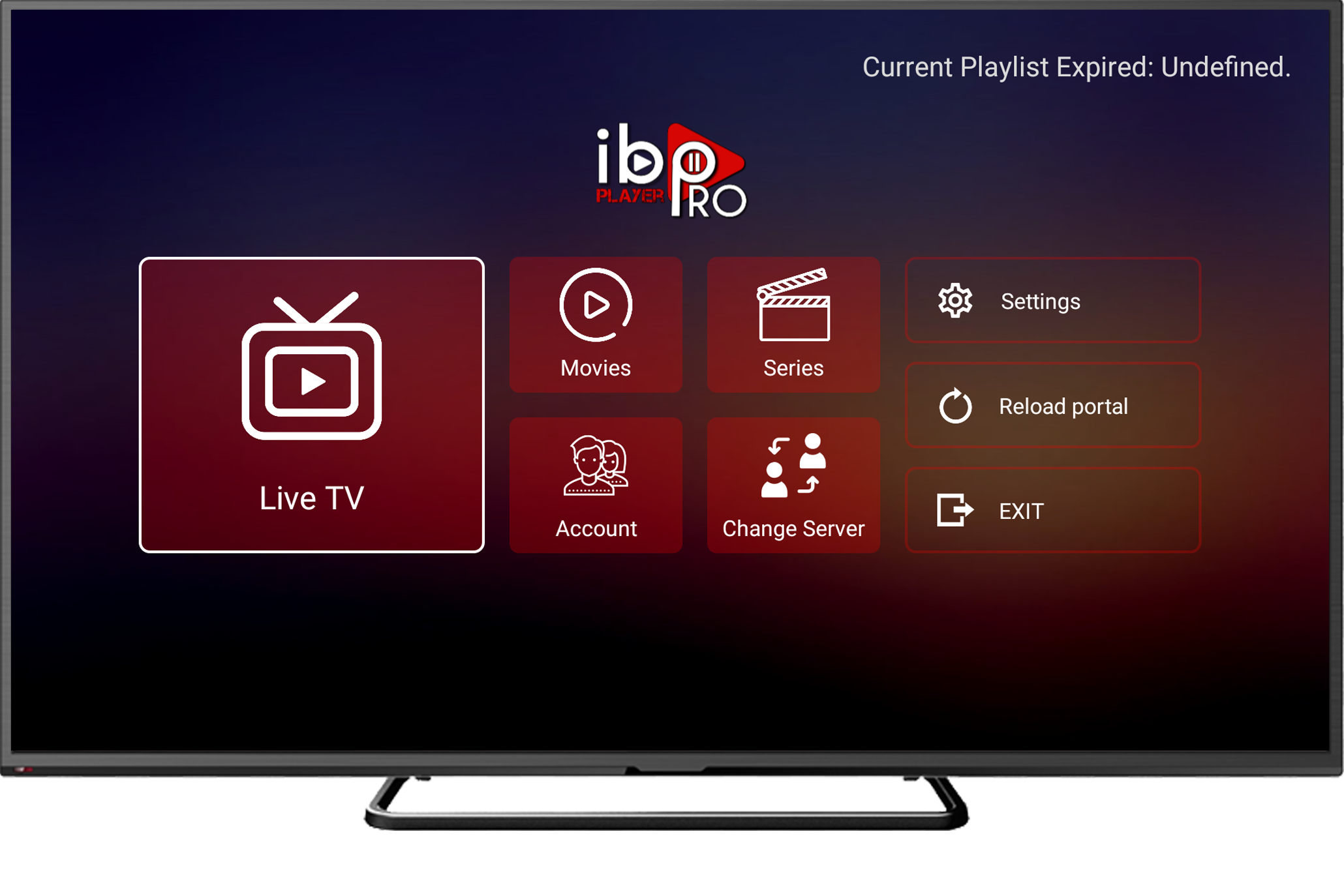
Table of Contents
- What Is IPTV on Firestick?
- Why Use Firestick for IPTV?
- What You Need Before Installing
- Best IPTV Apps for Firestick
- Install IPTV on Firestick Using Downloader
- Add Your VieworaTV Login
- Install IBO Player Pro
- Install IPTV Smarters Pro
- Install TiviMate
- Best Settings for IPTV on Firestick
- Fix IPTV on Firestick Not Working
- Is IPTV on Firestick Legal?
- FAQs
What Is IPTV on Firestick?
IPTV on Firestick means streaming live TV, movies, and series through an IPTV player app installed on your Amazon Firestick or Fire TV device. Firestick itself does not include any IPTV channels — it’s simply the hardware. To watch anything, you need an IPTV app such as IBO Player Pro, IPTV Smarters Pro, or TiviMate, plus a valid IPTV subscription or authorized playlist to load into it.
Why Use Firestick for IPTV?
- Affordable streaming device that plugs into any HDMI TV
- Easy to set up and move between TVs
- Supports a wide range of IPTV player apps
- Small and portable — great for travel
- Works over Wi-Fi, with an Ethernet adapter option for stability
- Well suited to live TV, sports, movies, and series
- Simple sideloading process using the official Downloader app
What You Need Before Installing IPTV on Firestick
- An Amazon Firestick or Fire TV device
- A stable internet connection
- An Amazon account signed in on the device
- The Downloader app
- An IPTV player app (IBO Player Pro, IPTV Smarters Pro, TiviMate, etc.)
- Your VieworaTV server URL
- Your VieworaTV username
- Your VieworaTV password
- Optional: an M3U playlist URL, if that’s your preferred login method
Best IPTV Apps for Firestick in 2026
| App Name | Best For | Login Method | Beginner Friendly |
|---|---|---|---|
| IBO Player Pro | Simple, reliable everyday streaming | Xtream Codes API / M3U | Yes |
| IPTV Smarters Pro | Free, feature-rich, widely used | Xtream Codes API / M3U | Yes |
| TiviMate | Advanced EPG and customizable interface | Xtream Codes API / M3U | Moderate |
| XCIPTV | Multi-screen and catch-up support | Xtream Codes API / M3U | Yes |
| Smart IPTV | Smart TV pairing, lightweight on Firestick | M3U (via MAC address) | Moderate |
| OTT Navigator | Power users wanting deep customization | Xtream Codes API / M3U | Advanced |
How to Install IPTV on Firestick Using Downloader
The most common way to install IPTV on Firestick is by sideloading your chosen player app using the official Downloader tool.
Step 1: Install Downloader on Firestick
- Go to the Firestick home screen
- Select Find
- Search for Downloader
- Select Downloader by AFTVnews
- Click Get or Download
- Open the app once installed
Step 2: Enable Install Unknown Apps
- Go to Settings
- Select My Fire TV
- Open Developer Options
- Select Install Unknown Apps
- Turn Downloader ON
Step 3: Download Your IPTV App
Only download your IPTV app from an official app website or a source you trust. Popular choices for IPTV on Firestick include IBO Player Pro, IPTV Smarters Pro, and TiviMate.
Step 4: Install the IPTV App
- Open Downloader
- Enter the official APK URL for your chosen app
- Download the file
- Click Install
- Delete the APK file after installation to save storage
How to Add Your VieworaTV IPTV Login on Firestick
Using Xtream Codes API
Open your IPTV app and choose the Xtream Codes API login option. Enter your VieworaTV Server URL, Username, and Password exactly as provided, then save and restart the app.
Using M3U Playlist URL
Alternatively, choose the M3U login option. Add a playlist name, paste your VieworaTV M3U URL, save your details, and restart the app to load your channels.
How to Install IBO Player Pro on Firestick
IBO Player Pro is one of the simplest and most reliable apps for IPTV on Firestick. Installation follows the same Downloader process outlined above, followed by entering your VieworaTV Xtream Codes or M3U details. For the full step-by-step walkthrough, including screenshots, see our dedicated guide: How to Install IBO Player Pro on Firestick.
How to Install IPTV Smarters Pro on Firestick
- Install Downloader (see steps above)
- Download the IPTV Smarters Pro APK from its official source
- Install the app
- Choose Xtream Codes API as your login method
- Add your VieworaTV login details
How to Install TiviMate on Firestick
- Install TiviMate from the Google Play Store on supported Android devices, or via its official source on Fire TV where available
- Add your playlist using your VieworaTV Xtream Codes or M3U details
- Add an EPG URL if one is provided
- Save your settings and restart the app
A full dedicated TiviMate guide will be linked here once published.
Best Settings for IPTV on Firestick
- Use 5GHz Wi-Fi instead of 2.4GHz where possible
- Restart your Firestick before major live sports events
- Keep storage free by removing unused apps
- Clear your IPTV app’s cache periodically
- Use an Ethernet adapter for the most stable connection
- Keep your IPTV app updated to the latest version
- Restart your router if buffering happens
How to Fix IPTV on Firestick Not Working
IPTV App Not Opening
Force stop the app in Settings > Applications, then reopen it. If it still won’t open, restart your Firestick or reinstall the app.
Playlist Not Loading
Double-check your server URL, username, and password for typos, and reload the playlist from your provider’s portal if needed.
Channels Not Working
If only certain channels fail, the issue is usually on the provider’s server side. If every channel fails, restart the app and check your subscription status.
IPTV Buffering on Firestick
Test your internet speed, switch to 5GHz Wi-Fi or Ethernet, and restart your router. Closing other background apps can also help.
Login Details Not Accepted
Confirm your username and password are entered exactly as provided, with no extra spaces, and that your subscription hasn’t expired.
For more detailed troubleshooting, see our guide: Fixing IBO Player Pro Not Working.
Is IPTV on Firestick Legal?
IPTV technology itself is legal — it’s simply a method of delivering television over the internet. Whether a specific use is legal depends on the source of the content and playlist rights involved. Users should only use IPTV services and playlists they are authorized to access. Firestick is only a streaming device; it does not determine the legality of any content watched through it.
Need an IPTV Login for Firestick?
VieworaTV provides stable servers, fast support, and simple setup for IPTV on Firestick.
Looking for IPTV on Firestick in the UK?
VieworaTV is focused on IPTV tutorials and setup guides for Canada and international users. If you are based in the United Kingdom, visit TVPrime4K for UK IPTV Firestick setup help, Smart TV guides, and free trial options.
IPTV on Firestick FAQs
Can I install IPTV on Firestick?
Yes. You can install IPTV on Firestick using an IPTV player app such as IBO Player Pro, IPTV Smarters Pro, or TiviMate, sideloaded through the Downloader app.
What is the best IPTV app for Firestick?
IBO Player Pro and IPTV Smarters Pro are both popular, beginner-friendly choices for IPTV on Firestick, while TiviMate suits users who want a more customizable EPG.
Do I need Downloader for IPTV on Firestick?
Yes, since most IPTV apps aren’t available in the Amazon App Store, Downloader is the standard tool used to sideload them onto Firestick.
Is IPTV on Firestick legal?
IPTV technology is legal. Legality depends on the source of the content and playlist you use, so only use subscriptions and playlists you are authorized to access.
Why is IPTV buffering on Firestick?
Buffering is usually caused by a weak internet connection. Switching to 5GHz Wi-Fi or Ethernet and restarting your router often resolves it.
Can I use VieworaTV on Firestick?
Yes. VieworaTV works with all major Firestick-compatible IPTV apps using either Xtream Codes API or M3U login.
What login details do I need for IPTV on Firestick?
You’ll need either your Xtream Codes Server URL, Username, and Password, or an M3U playlist URL, both provided with your VieworaTV subscription.
Can VieworaTV help me set up IPTV on Firestick?
Yes. VieworaTV support can help with installation, login setup, and troubleshooting for IPTV on Firestick.
Conclusion: Set Up IPTV on Firestick with VieworaTV
Getting IPTV on Firestick up and running is a straightforward process: install Downloader, enable unknown apps, install your preferred IPTV player, add your VieworaTV login, and restart the app. From there, you’re ready to watch live TV, sports, movies, and series.
Explore more setup guides for IBO Player Pro on Firestick, IBO Player Pro on Smart TV, and our full IPTV setup guide. Canadian viewers can also check our IPTV Canada page, and UK viewers can find equivalent help at TVPrime4K.com.
