

Ultimate IBO Player Pro Smart TV Guide: Easy Setup 2026
Are you looking to upgrade your home entertainment system this year? Setting up an IBO Player Pro Smart TV connection is the ultimate way to stream your favorite content seamlessly in 2026. Known for its lightning-fast interface, excellent format compatibility, and zero-lag streaming engine, this premium application has become the gold standard for cord-cutters worldwide.
In this comprehensive technical guide, we will walk you through exactly how to install IBO Player Pro on Samsung Smart TV, LG Smart TV, Android TV, Google TV, and more. Plus, we will show you how to securely add your VieworaTV IPTV login to the application so you can start watching premium television in minutes.
Table of Contents
- What Is IBO Player Pro?
- Supported Smart TV Devices
- What You Need Before Installing
- Install on Samsung Smart TV (Video)
- Install on LG Smart TV (Video)
- Install on Android & Google TV (Video)
- Finding Device ID & Key
- How to Activate the App
- Adding VieworaTV IPTV Login
- Best Settings for Streaming
- Common Troubleshooting
- UK IPTV Alternatives
- Frequently Asked Questions
What Is IBO Player Pro?
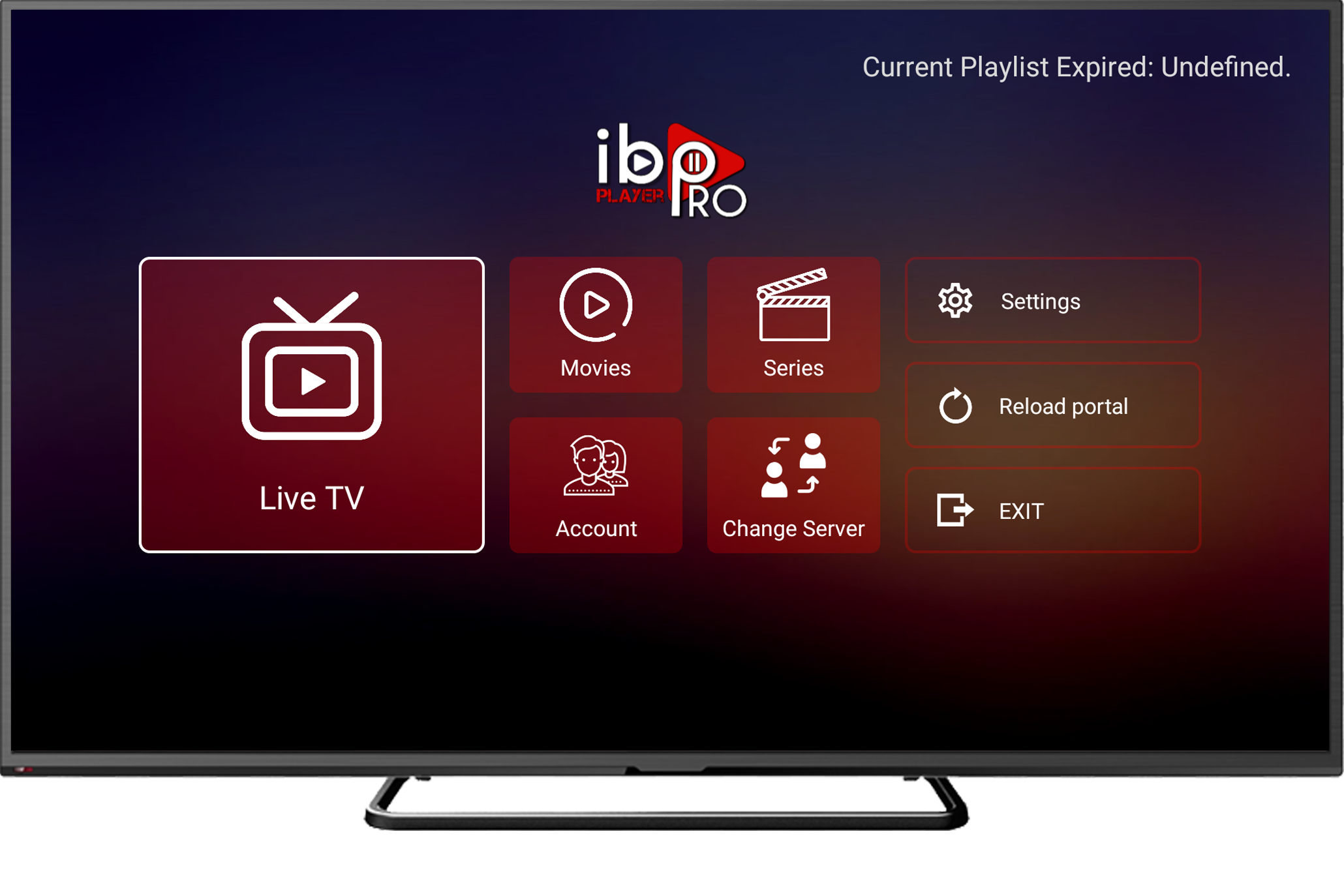
IBO Player Pro is an advanced, subscription-based media player designed specifically for modern televisions. It serves as a major upgrade over the standard official IBO Player, offering a more responsive user interface, superior EPG (Electronic Program Guide) formatting, faster channel zapping times, and seamless 4K resolution support.
Does IBO Player Pro Include Channels?
No. It is very important to understand that IBO Player Pro is strictly an empty media player. It does not provide any channels, live sports, movies, or VOD (Video on Demand) content out of the box. To watch content, you must purchase an IPTV subscription from a premium provider like VieworaTV and link your personal playlist to the app using Xtream Codes or an M3U URL.
Supported Devices for IBO Player Pro Smart TV
Before diving into your IBO Player Smart TV setup, you need to ensure device compatibility. The good news is that the developers have made the app highly versatile across major global television brands.
| TV Brand / OS | App Store Availability | Installation Method |
|---|---|---|
| Samsung (Tizen OS) | Natively Supported | Samsung Smart Hub / App Store |
| LG (webOS) | Natively Supported | LG Content Store |
| Sony / Google TV | Natively Supported | Google Play Store |
| TCL / Hisense | Natively Supported | Google Play Store |
| Older Smart TVs | Requires External Device | Use an Amazon Firestick or Android Box |
What You Need Before Installing IBO Player Pro Smart TV
Gather the following essentials to make your IPTV on Smart TV installation smooth and error-free:
- A supported Smart TV connected to a robust, high-speed internet network.
- Access to your television’s respective app store.
- Your TV’s Device ID (MAC address) and Device Key (you will find this inside the app after installing it).
- Your VieworaTV Xtream Codes API credentials (Server URL, Username, Password).
- An active official IBO Player Pro app license (after the initial 7-day free trial expires).
How to Install IBO Player Pro on Samsung Smart TV
If you own a Samsung device running Tizen OS, setting up the IBO Player Pro Samsung TV app takes just a few minutes. Watch the detailed video tutorial below or follow our written steps.
Samsung Smart TV Installation Steps
- Turn on your Samsung TV and press the Home button on the remote control.
- Navigate to the Apps menu at the bottom of the screen.
- Select the search icon (the magnifying glass) and type in “IBO Player Pro”.
- Highlight the official application and click Install.
- Once downloaded, click Open to launch the media player.
- The home screen will immediately display your Device ID and Device Key. Take a photo of this screen with your phone.
How to Install IBO Player Pro on LG Smart TV
Installing the IBO Player Pro LG TV app is seamless via the webOS content ecosystem. Follow the video guide or the step-by-step instructions below.
LG Smart TV Installation Steps
- Press the Home button and open the LG Content Store from your dashboard.
- Use the search function to look for “IBO Player Pro”.
- Select the app and press Install.
- After the installation finishes, open the application.
- Write down or photograph the Device ID and Device Key required for activation and playlist linking.
How to Install IBO Player Pro on Android TV or Google TV
For brands like Sony, TCL, Philips, and Hisense, the IBO Player Pro Android TV application is managed securely by Google. Check out the setup video or read the instructions below.
Install from Google Play Store
Simply navigate to the Google Play Store on your Android TV’s dashboard, select the search bar, type “IBO Player Pro”, and install it directly. This guarantees you are downloading the safest and most recently updated version of the software.
How to Find Device ID and Device Key on IBO Player Pro Smart TV
Every IBO Player Pro Smart TV installation generates unique credentials. These are necessary to sync your playlists securely.
Upon opening the app for the very first time, the main dashboard will prominently display two things: your Device ID (MAC address) and your Device Key. These alphanumeric codes act as the bridge between your TV and your VieworaTV IPTV subscription. Do not share these publicly online.
How to Activate IBO Player Pro Smart TV
The app offers a generous 7-day free trial so you can test its features. Afterward, a one-time or annual activation fee applies. (Note: Paying this fee goes to the app developer, not to VieworaTV, and does not include channel content).
- Go to the official IBO activation page on your smartphone or personal computer.
- Input the Device ID and Device Key exactly as they appear on your TV screen.
- Select your preferred activation tier (yearly subscription or a lifetime license).
- Complete the secure payment process.
- Restart the app on your television to register the activation.
How to Add VieworaTV IPTV Login to IBO Player Pro Smart TV
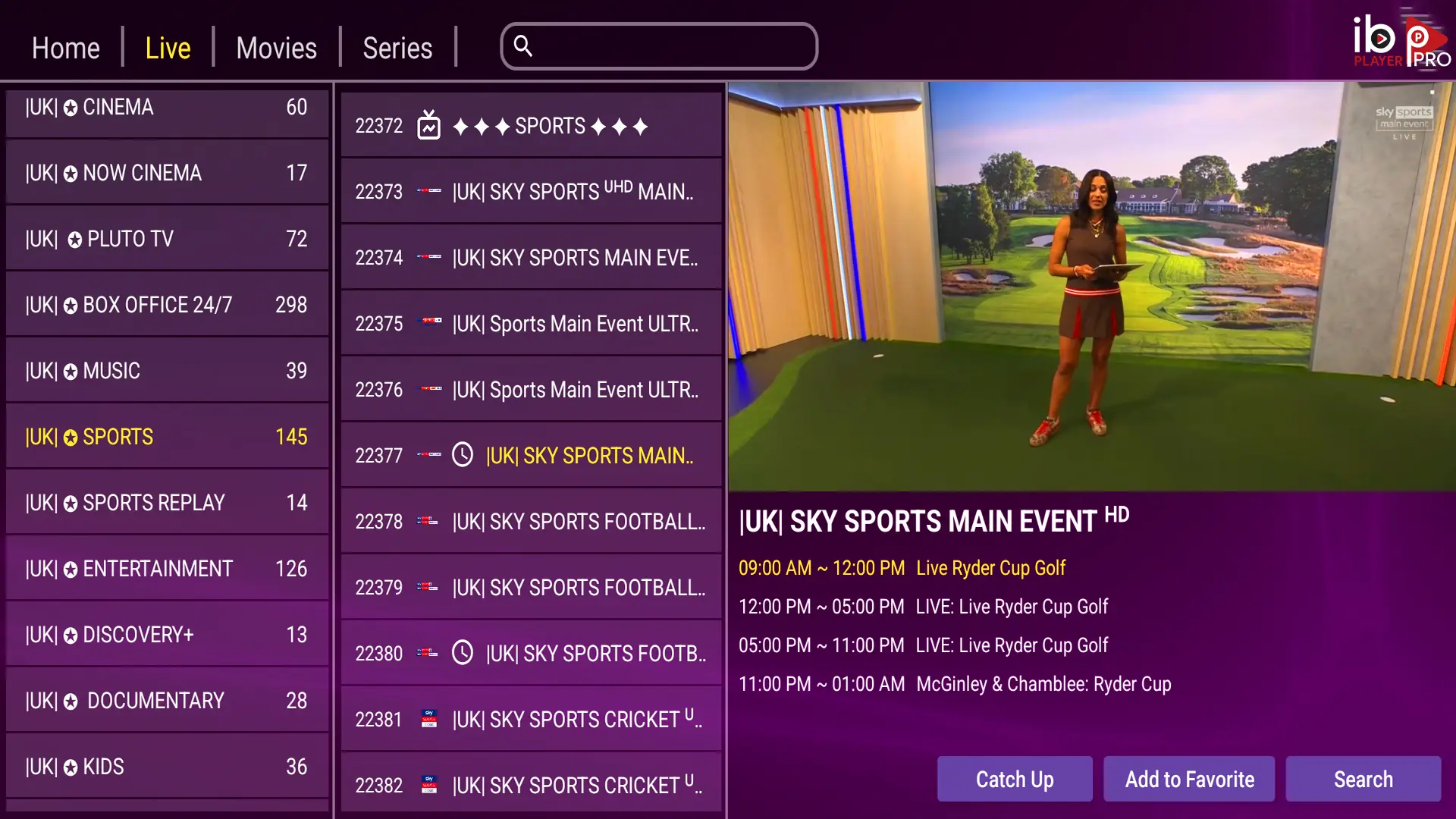
With the app activated, it is time to sync your VieworaTV IPTV premium channels. Once successfully connected, your application will populate with your live TV categories, movies, and series, looking similar to the interface below.
Add VieworaTV with Xtream Codes API (Recommended)
Using the Xtream Codes API is highly recommended because it loads significantly faster than an M3U file and automatically categorizes your Live TV, VODs, and Series menus with proper EPG data.
- Log into the official IBO Player playlist portal (iboplayer.pro) via a web browser on your phone or PC.
- Enter your TV’s Device ID and Device Key on the login page.
- Click on the button labeled Add Xtream Playlist.
- Enter a playlist name (e.g., “VieworaTV Premium”).
- Input your VieworaTV Server URL (Host).
- Input your Username.
- Input your Password.
- Click Save, then return to your Smart TV and completely restart the IBO Player Pro app to force a playlist update.
Best Settings for IBO Player Pro Smart TV
Follow these expert VieworaTV optimization tips to prevent buffering and maximize visual performance:
- Keep Firmware Updated: Always ensure you are running the latest Tizen, webOS, or Android TV software updates.
- Limit Active Playlists: Do not overload the app with multiple inactive M3U links. One premium connection works best.
- Clear Cache Periodically: Restart your router and power cycle your TV before major live sports events to clear network congestion.
- Pin Lock Adult Content: You can utilize the portal to lock specific playlist categories with a PIN to keep your TV family-friendly.
IBO Player Pro Smart TV Troubleshooting
1. App Not Showing in Smart TV App Store
If you cannot find the app, your TV’s regional settings may be restricting it. For Samsung, you can often change your Smart Hub region. If that fails, investing in an affordable Amazon Firestick or an Android box will bypass your TV’s native app store limitations entirely.
2. Device Key Shows N/A or Missing
A missing Device Key indicates that the app cannot connect to the internet. Check your television’s network settings, verify that you are connected to Wi-Fi or Ethernet, and relaunch the application to generate a new key.
3. Playlist Not Loading / Constant Buffering
If your channels refuse to load, log back into the web portal and carefully verify your VieworaTV login details for typos—a single incorrect letter will cause the connection to fail. If the app is buffering, reset your home router and run a network test to ensure you are receiving at least 30-50 Mbps download speeds directly on the TV.
Ready to Unlock Your IBO Player Pro Smart TV?
Don’t settle for buffering feeds or empty playlists. VieworaTV delivers premium 4K streaming, massive on-demand movie libraries, and the most reliable live sports coverage on the market.
Start Your Free TrialOr view our IPTV plans and Contact Support for setup assistance.
Looking for IPTV Tutorials in the UK?
VieworaTV specializes in dedicated IPTV setups for Canada and international viewers. However, if you are located in the United Kingdom, we highly recommend visiting our trusted partners at TVPrime4K.
They offer dedicated UK Smart TV guides, extensive Firestick tutorials, and a risk-free Free Trial specifically optimized to bypass UK internet service provider blocks. Visit TVPrime4K.com today.
IBO Player Pro Smart TV FAQs
1. Can I install IBO Player Pro on Smart TV?
Yes, the IBO Player Pro Smart TV application is natively available on most modern Samsung (Tizen OS), LG (webOS), and Android/Google televisions directly via their standard app stores.
2. Does IBO Player Pro include IPTV channels?
No. IBO Player Pro functions purely as a media player interface. It requires you to link a third-party IPTV subscription, such as VieworaTV, to populate the app with live TV, movies, and series.
3. How do I activate IBO Player Pro on Smart TV?
Visit the official app developer’s activation page online, enter your television’s unique Device ID and Device Key, select a payment plan (yearly or lifetime), and restart the app on your TV to finalize the activation.
4. What IPTV details do I need for IBO Player Pro Smart TV?
To successfully link your streaming service, you will need your IPTV provider’s Xtream Codes API details (Server URL, Username, and Password) or a standard M3U Playlist URL link.
5. Why is IBO Player Pro not working on my Smart TV?
The most common issues include a disconnected internet network, an expired 7-day trial period without activation, or typographical errors in your IPTV login details. Always verify your connection first and ensure the app fee is paid.
6. Can VieworaTV help me set up IBO Player Pro Smart TV?
Yes! VieworaTV offers comprehensive setup guides just like this one, and our dedicated support team is always available to help active subscribers configure their Xtream Codes seamlessly.
Conclusion: Install IBO Player Pro Smart TV and Start Streaming
Installing the IBO Player Pro Smart TV application is undoubtedly one of the smartest technological upgrades you can make for your entertainment center in 2026. By following these straightforward steps, you’ve secured a fast, modern media player that handles high-resolution streams with ease.
To get the absolute best out of your new hardware setup, pair it with a top-tier network provider. Head back to the VieworaTV homepage today to explore our powerful server packages and claim your free trial!
