
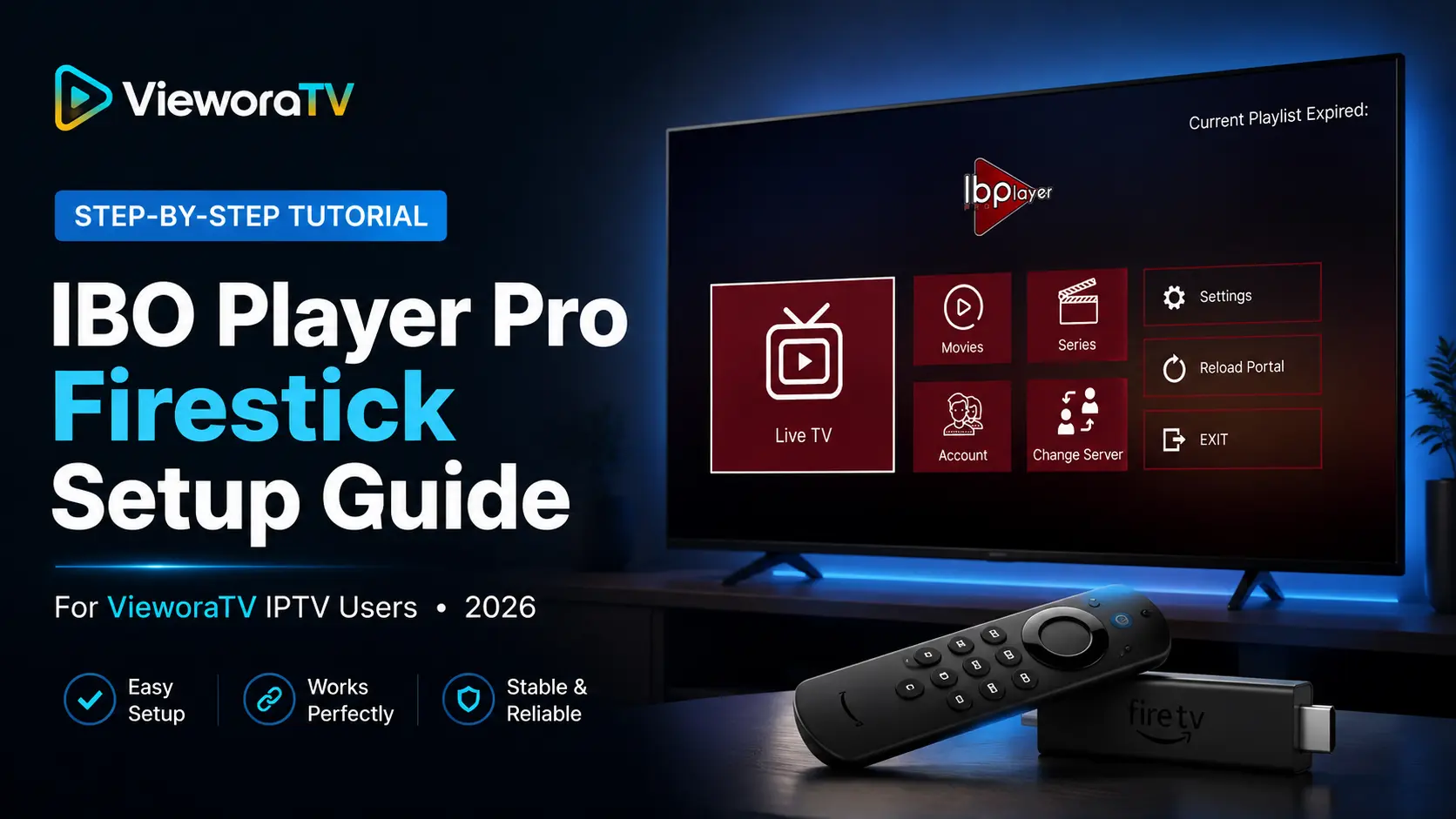

How to Install IBO Player Pro Firestick in 2026
Last updated: July 2026
If you want to install IBO Player Pro Firestick in 2026, this step-by-step guide will show you exactly how to do it.
You will learn how to install the app, enable the right Firestick settings, find your Device ID and Device Key, activate the app,
and add your VieworaTV IPTV login safely.
IBO Player Pro Firestick is a popular setup choice for IPTV users because Firestick devices are affordable,
easy to use, and work well with many IPTV player apps. Once installed, IBO Player Pro can help you organize your IPTV playlist,
live TV channels, movies, series, and EPG guide in one clean interface.
This tutorial is written for VieworaTV users, but the same general steps can also help anyone who wants to install IBO Player Pro
on Amazon Fire TV Stick, Fire TV Cube, Android TV, or Android TV Box.

Wikimedia Commons
.
What Is IBO Player Pro?
IBO Player Pro is a media player app used to play IPTV playlists on compatible devices. It is commonly used on Firestick,
Android TV, Smart TVs, Android boxes, tablets, and mobile devices.
The important thing to understand is this: IBO Player Pro does not include channels, movies, series, or playlists by itself.
It is only a player. To use it, you need your own IPTV subscription or an authorized playlist from a provider such as VieworaTV.
You can learn more from the official
IBO Player Pro website
and the official
IBO Player activation page.
VieworaTV does not recommend using unknown APK sources, illegal streams, or unauthorized playlists.
What You Need Before Installing IBO Player Pro Firestick
Before you start the IBO Player Pro Firestick setup, make sure you have everything ready.
This will make the installation faster and prevent common errors.
- An Amazon Firestick, Fire TV, or Fire TV Cube
- A stable internet connection
- The Downloader app from the Amazon Appstore
- The official IBO Player Pro APK link
- Your IBO Player Pro Device ID and Device Key
- Your VieworaTV IPTV login details
- An active IBO Player Pro app license after the trial period
If you do not have IPTV login details yet, you can request a trial here:
VieworaTV free IPTV trial.
You can also compare available options here:
VieworaTV IPTV plans.
IBO Player Pro Firestick Video Tutorial
This video is useful if you prefer to watch the installation process before following the written steps.
The written guide below gives you the full VieworaTV setup process with extra tips for activation, playlist login, and troubleshooting.
Video source:
IBO Player Pro install from Downloader on Android TV or Fire TVs
.
Step 1: Install Downloader on Firestick
To install IBO Player Pro Firestick, the easiest method is to use the Downloader app.
Downloader lets Fire TV users enter a URL or short code to download APK files.
How to Install Downloader
- Turn on your Firestick and go to the home screen.
- Select Find.
- Choose Search.
- Type Downloader.
- Select the Downloader app by AFTVnews.com.
- Click Get or Download.
- Wait for the app to install.
You can view the Downloader app listing on Amazon here:
Downloader on Amazon Appstore
.
Step 2: Enable Install Unknown Apps
After installing Downloader, you need to allow Downloader to install APK files. This is required for most apps that are installed
outside the Amazon Appstore.
Enable Downloader Permission
- Go to the Firestick home screen.
- Open Settings.
- Select My Fire TV.
- Choose Developer Options.
- Select Install Unknown Apps.
- Find Downloader.
- Turn Downloader permission ON.
If Developer Options does not appear, go to Settings > My Fire TV > About, then click your Fire TV device name
several times until developer mode is enabled. Then return to Developer Options.
If you cannot enable Downloader, update your Firestick, restart the device, or contact VieworaTV support for help.
Step 3: Download IBO Player Pro APK on Firestick
Now you can download the IBO Player Pro APK using Downloader. For safety, always use the official IBO Player Pro website or official APK link.
Avoid random APK websites because they may contain outdated or unsafe files.
Download IBO Player Pro Firestick APK
- Open the Downloader app.
- Select the URL box.
- Enter the official IBO Player Pro APK URL shown on the official website.
- At the time of writing, the official APK URL is:
https://iboproapp.com/ibopro.apk - Click Go.
- Wait for the APK file to download.
You can verify the latest official download information here:
IBO Player Pro official website.
Step 4: Install IBO Player Pro on Firestick
Once the APK download is complete, Firestick will show the installation screen.
Install the App
- Click Install.
- Wait for the installation to finish.
- Click Done.
- When Downloader asks if you want to delete the APK file, choose Delete.
- Confirm Delete again to save storage space.
Your IBO Player Pro Firestick installation is now complete. The next step is to open the app and collect your device details.
Step 5: Find Your Device ID and Device Key
When you open IBO Player Pro for the first time, the app should show a Device ID and Device Key.
These details are required for activation and playlist setup.
Find IBO Player Pro Device Details
- Open IBO Player Pro on your Firestick.
- Wait for the welcome screen to load.
- Write down your Device ID.
- Write down your Device Key.
- Keep the app open while you complete activation or playlist setup on your phone or computer.
If you are a VieworaTV customer, you can send your Device ID and Device Key to support if you need help with setup.
Contact VieworaTV here:
VieworaTV contact page.
How to Activate IBO Player Pro Firestick
IBO Player Pro normally includes a short trial period, then requires activation through the official IBO activation website.
Activation is separate from your IPTV subscription. Your IPTV provider and your IBO Player Pro app license are not the same thing.
Activate IBO Player Pro
- Open a browser on your phone, tablet, or computer.
- Go to the official IBO activation page:
activation.iboplayer.com. - Enter your Device ID or MAC address.
- Enter your Device Key.
- Follow the payment and activation instructions on the official page.
- Restart IBO Player Pro on your Firestick after activation.
To watch content, you still need your own IPTV login or authorized playlist.
How to Add VieworaTV IPTV Login to IBO Player Pro Firestick
After installing and activating the app, you need to add your IPTV playlist. VieworaTV can provide IPTV login details after your trial
or subscription is activated.
There are usually two common ways to add IPTV service to IBO Player Pro: Xtream Codes API or an M3U playlist URL.
Xtream Codes is usually easier because it uses a server URL, username, and password.
Option 1: Add VieworaTV Using Xtream Codes API
- Open the playlist management portal shown by your IBO Player Pro app.
- Enter your Device ID and Device Key.
- Choose Add Playlist.
- Select Xtream Codes API if available.
- Enter your VieworaTV server URL.
- Enter your VieworaTV username.
- Enter your VieworaTV password.
- Save the playlist.
- Restart IBO Player Pro on your Firestick.
Option 2: Add VieworaTV Using M3U Playlist URL
- Open the IBO Player Pro playlist portal.
- Enter your Device ID and Device Key.
- Choose Add Playlist.
- Select M3U or M3U URL.
- Paste your VieworaTV M3U playlist link.
- Save the playlist.
- Restart the app and wait for channels to load.
Need IPTV login details? Start here:
VieworaTV free trial
or explore
VieworaTV IPTV plans.
Best Settings for IBO Player Pro Firestick
After installing IBO Player Pro Firestick, you can improve performance with a few simple settings.
These tips are useful for live TV, sports, movies, and series.
- Use a stable Wi-Fi connection or Ethernet adapter if possible.
- Restart your Firestick before big live sports events.
- Keep at least 1GB of free storage on your Firestick.
- Clear cache from unused apps.
- Use the latest version of IBO Player Pro from the official source.
- Restart the app after adding or updating your playlist.
- Use Xtream Codes login when available because it is easier to manage.
For more general setup help, visit:
VieworaTV IPTV setup guide.
IBO Player Pro Firestick Troubleshooting
IBO Player Pro Not Installing on Firestick
If the app does not install, check that Downloader has permission to install unknown apps. Also make sure your Firestick has enough free storage.
- Restart your Firestick.
- Check your internet connection.
- Enable Install Unknown Apps for Downloader.
- Delete unused apps to free storage.
- Use the official APK link only.
Device ID or Device Key Not Showing
If your Device ID or Device Key does not appear, close the app and reopen it. If that does not work, restart your Firestick and check your internet connection.
Playlist Not Loading
If your playlist does not load, the most common causes are incorrect login details, expired subscription, wrong server URL, or unstable internet.
- Check the username and password carefully.
- Make sure the server URL is correct.
- Restart IBO Player Pro after saving the playlist.
- Restart your Firestick and router.
- Contact VieworaTV support if your login details still do not work.
IBO Player Pro Buffering on Firestick
Buffering is usually caused by Wi-Fi signal problems, overloaded devices, slow internet, or too many apps running in the background.
- Move your Firestick closer to your router.
- Use a 5GHz Wi-Fi network if available.
- Restart your router.
- Close background apps.
- Clear app cache.
- Use Ethernet for more stable streaming.
For Firestick-specific help, visit:
VieworaTV IPTV Firestick guide.
Need IPTV for IBO Player Pro Firestick?
VieworaTV helps Firestick users set up IPTV on IBO Player Pro, IPTV Smarters, TiviMate, Smart TVs, Android TV,
iPhone, iPad, Windows, and Mac.
Free Trial:
Request your VieworaTV free trial
IPTV Plans:
VieworaTV IPTV pricing
Support:
Contact VieworaTV
Canada IPTV:
VieworaTV IPTV Canada
Looking for IPTV Tutorials in the UK?
VieworaTV is focused on IPTV tutorials and setup guides for Canada and international users.
If you are based in the United Kingdom, you can also visit TVPrime4K for UK IPTV setup help,
Firestick tutorials, Smart TV guides, and free trial options.
IBO Player Pro Firestick FAQs
Can I install IBO Player Pro on Firestick?
Yes. You can install IBO Player Pro Firestick using the Downloader app and the official IBO Player Pro APK link.
Does IBO Player Pro include IPTV channels?
No. IBO Player Pro is only a media player. It does not include live TV channels, movies, series, or playlists.
You need your own IPTV subscription or authorized playlist.
Do I need to activate IBO Player Pro?
Yes. IBO Player Pro usually offers a short trial period, then you need to activate the app through the official activation page.
This activation is separate from your VieworaTV IPTV subscription.
What details do I need to add VieworaTV to IBO Player Pro?
You usually need your VieworaTV server URL, username, and password for Xtream Codes login. You may also receive an M3U playlist URL.
Why is my IBO Player Pro playlist not loading?
Playlist loading problems are usually caused by wrong login details, expired IPTV service, incorrect server URL, weak internet,
or the app needing a restart after saving the playlist.
Is IBO Player Pro better than IPTV Smarters or TiviMate?
It depends on your device and preference. IBO Player Pro is simple and works well on many devices. TiviMate is popular with advanced users,
while IPTV Smarters is familiar for many beginners.
Can VieworaTV help me set up IBO Player Pro Firestick?
Yes. VieworaTV support can help customers set up IPTV login details on Firestick, Smart TV, Android TV, and other supported devices.
