
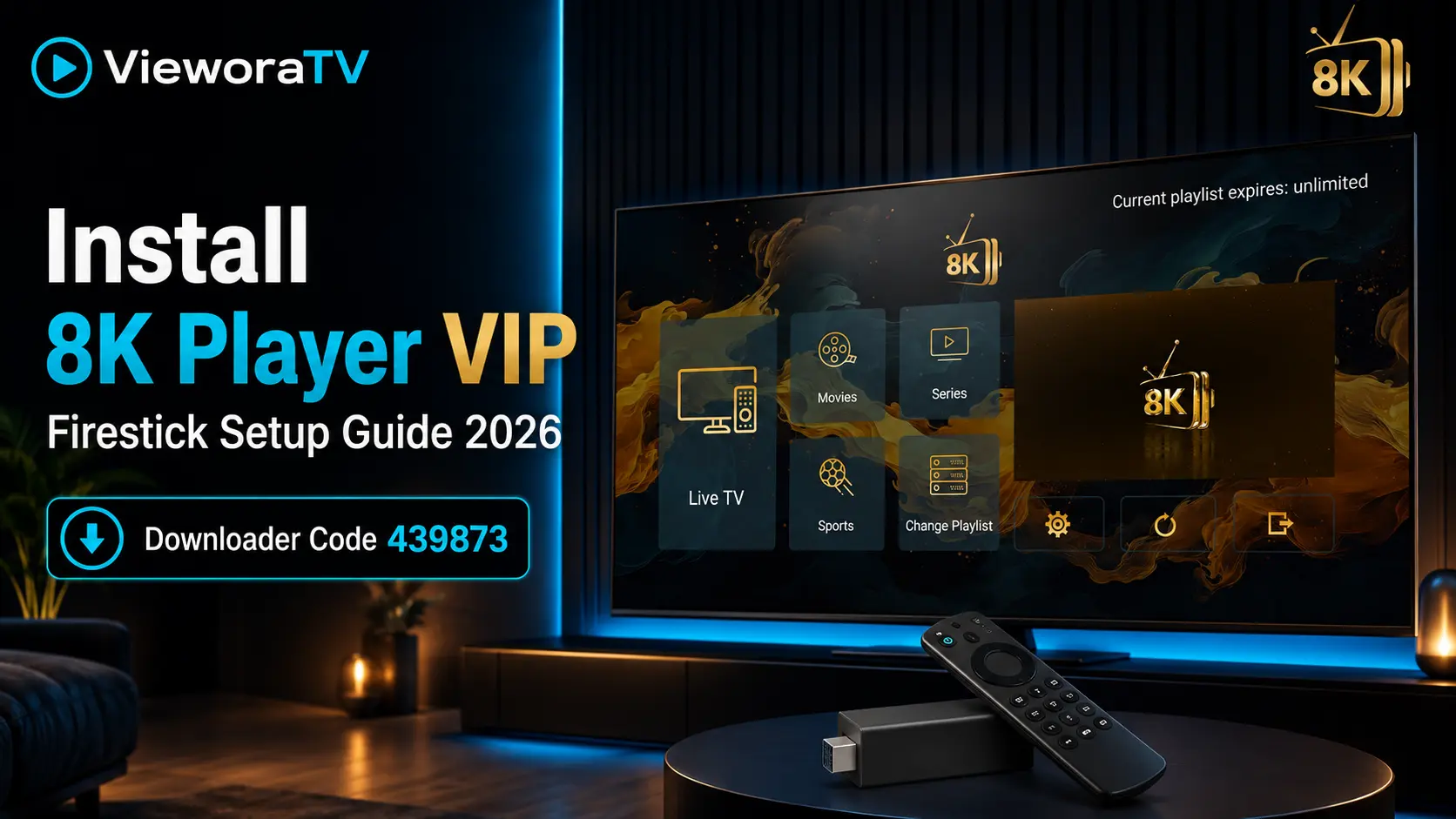

Want to install 8K Player VIP on your Amazon Firestick or Android TV? This updated 2026 VieworaTV tutorial walks you through the entire process—from installing Downloader and enabling app permissions to entering the correct download code and adding your playlist login.
8K Player VIP is designed for televisions and remote-control navigation. It provides a straightforward interface for compatible live TV and on-demand playlists, making it a practical option for Fire TV Stick, Fire TV Cube, Android TV and Google TV devices.
Important: 8K Player VIP is a media player. It does not include channels, movies, series or a subscription by itself. You must add valid login details from an authorised provider. The “8K” in the app name does not guarantee that every stream will be available in 8K resolution.
If you are comparing several players before installing, read our complete IPTV on Firestick setup guide.
Quick Answer: How to Install 8K Player VIP
- Install Downloader from the Amazon Appstore.
- Enable Install unknown apps for Downloader.
- Open Downloader and enter code 439873.
- Wait for the 8K Player VIP APK to download.
- Select Install, then open the app.
- Edit the playlist profile and enter your username and password.
- Select Update Playlist and allow the content to load.
Table of Contents
- Compatible devices
- What you need
- Install Downloader
- Enable unknown apps
- Download 8K Player VIP
- Configure your playlist
- Recommended settings
- Troubleshooting
- Frequently asked questions
Devices Compatible with 8K Player VIP
- Amazon Fire TV Stick, Fire TV Stick Lite, 4K and 4K Max
- Amazon Fire TV Cube
- Android TV boxes, including NVIDIA Shield and compatible MECOOL devices
- Chromecast with Google TV
- Google TV streaming devices
- Smart TVs running Android TV or Google TV
Menus can look slightly different depending on your Fire OS version, device model and region, but the overall installation process remains similar.
What You Need Before Installing
- A compatible Fire TV, Android TV or Google TV device
- A stable internet connection
- An Amazon or Google account signed in on the device
- The free Downloader app
- The 8K Player VIP Downloader code: 439873
- A valid username and password from your playlist provider
- Approximately 10–15 minutes
VieworaTV customers receive compatible credentials after a trial or paid plan is activated. If you want to test your device first, request a free 24-hour VieworaTV trial.
Step 1: Install Downloader on Firestick
Downloader is the utility used to enter the 8K Player VIP code and install its APK on Fire TV devices.
- From the Fire TV home screen, select Find or the Search icon.
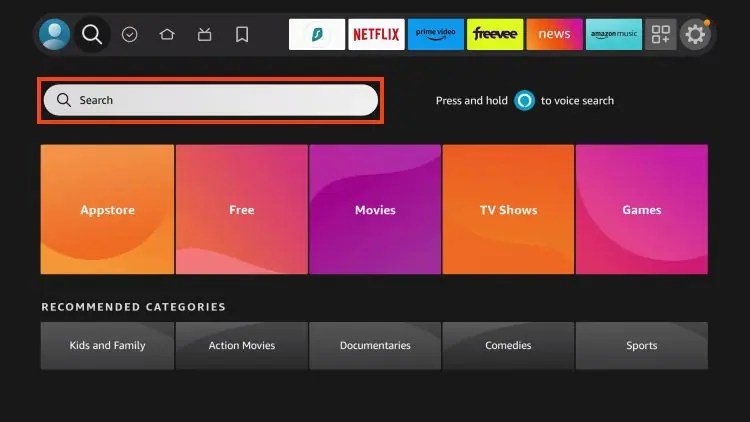
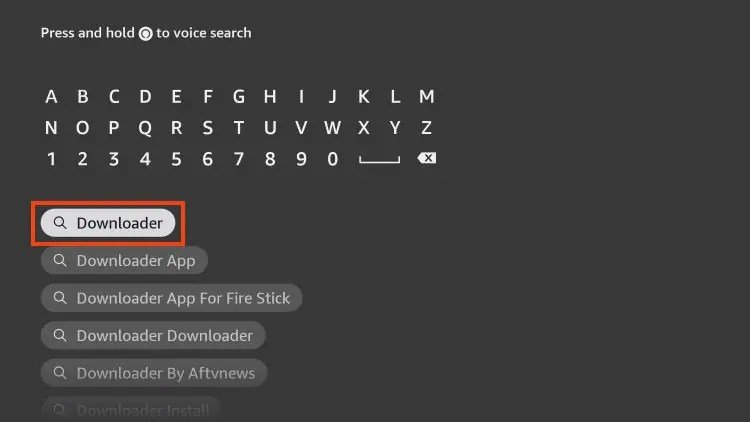
- Search for Downloader.
- Select the orange Downloader app published by AFTVnews.com.
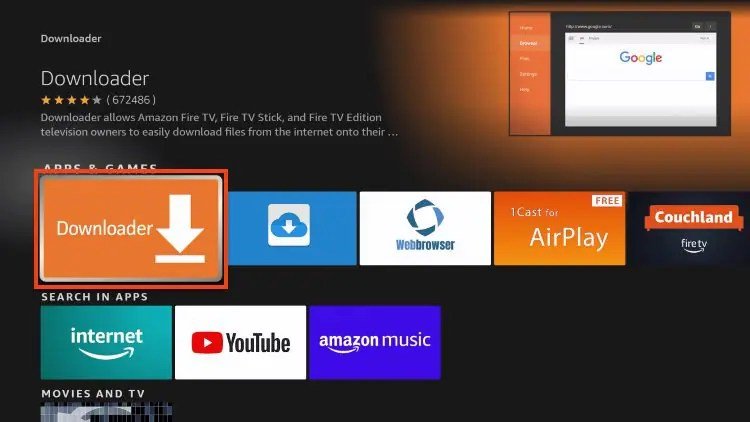
- Select Get or Download.
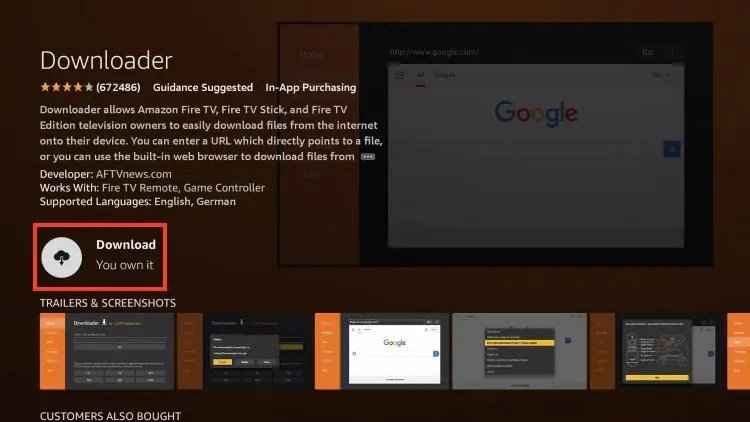
- Open Downloader after installation finishes.
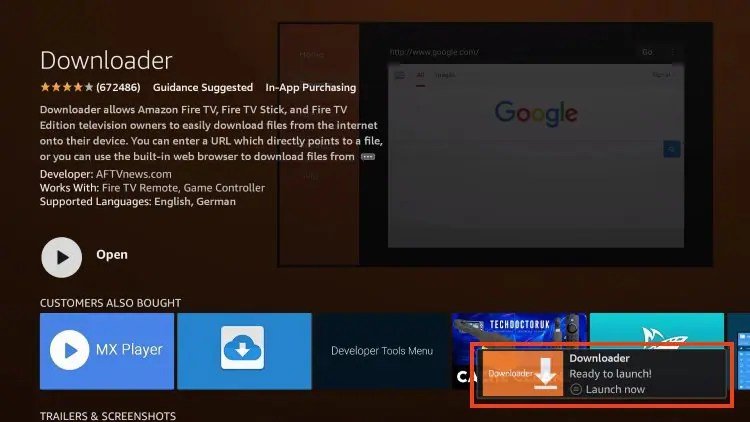
If Downloader requests file access, select Allow. Dismiss the introductory screen to reach the URL and code field.
Step 2: Enable Install Unknown Apps
Fire TV normally blocks APK installation from outside the Amazon Appstore. Give Downloader permission temporarily:
- Open Settings.
- Select My Fire TV.
- Open Developer Options.
- Select Install unknown apps.
- Find Downloader and switch it to On.
Developer Options Not Showing?
- Go to Settings > My Fire TV > About.
- Highlight your Fire TV device name.
- Press the centre/select button on the remote seven times.
- Wait for the developer confirmation message.
- Press Back and open Developer Options.
- Enable Install unknown apps for Downloader.
Amazon also documents this seven-click method in its official Fire TV developer guidance.
Step 3: Download and Install 8K Player VIP
- Open Downloader.
- Select the code or URL field.
- Enter the 8K Player VIP download code 439873.
- Select Go.
- Wait 4–6 seconds on the redirect page.
- If the download does not start automatically, select the displayed download link.
- Wait for the APK to finish downloading.
- When the installer appears, select Install.
- Choose Done after installation.
- Return to Downloader and delete the APK file to recover storage space.
Security tip: Use only the 8K Player VIP download code published in this VieworaTV guide. Avoid copies from unrelated APK websites or unknown Downloader codes.
After installation, you can switch Downloader’s unknown-app permission back to Off.
Step 4: Configure 8K Player VIP with VieworaTV
Keep the username and password supplied with your VieworaTV activation open while completing these steps:
- Launch the 8K Player VIP app.
- Select the playlist profile shown on the home screen.
- Choose Edit.
- Enter your VieworaTV username.
- Enter your VieworaTV password.
- Check every character and remove accidental spaces.
- Select Update Playlist.
- Wait while the app loads the available playlist categories.
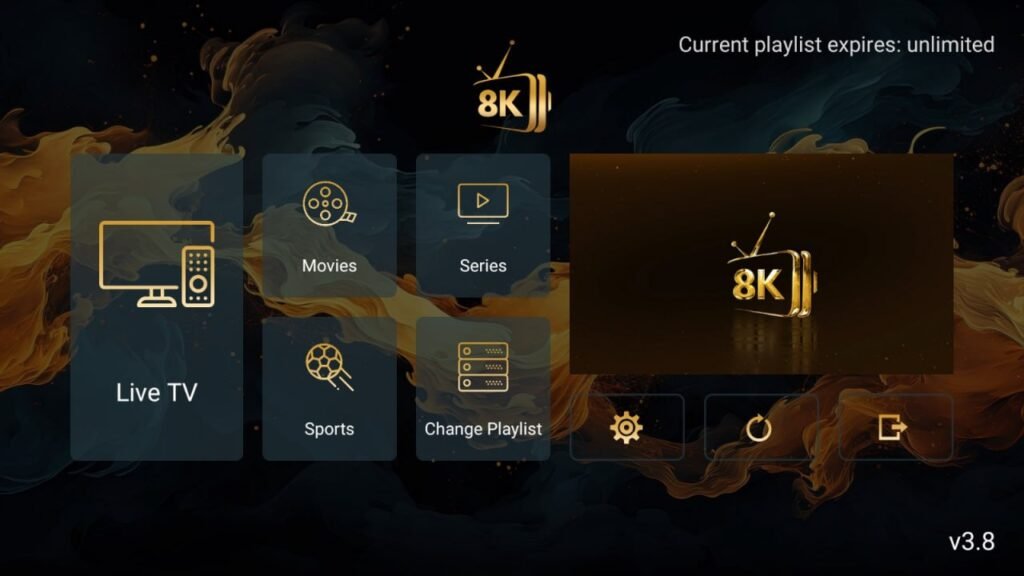
The initial playlist update can take several minutes. Keep 8K Player VIP open until the process finishes.
Recommended 8K Player VIP Settings
- Favourites: Bookmark frequently watched channels for faster access.
- Playlist updates: Refresh the playlist when categories or channels change.
- EPG updates: Update the programme guide when schedules appear empty.
- Parental controls: Use a PIN when the television is shared.
- Network: Prefer 5 GHz Wi-Fi or Ethernet for a more stable connection.
- Storage: Remove unused APK files and apps to keep enough free space.
Playback quality depends on the source stream, device, television and internet connection. The app name alone does not increase a low-resolution source to 8K.
Why Use 8K Player VIP with VieworaTV?
- Compatible login details supplied after activation
- Support for Firestick, Android TV and other compatible devices
- One-, two- and three-screen plan options
- Free 24-hour trial for testing device compatibility
- Setup assistance through WhatsApp
Installing one login on several devices does not automatically permit simultaneous streaming. Choose the correct number of connections if several screens will be used at the same time.
Prefer Another IPTV Player?
Different interfaces suit different users. Compare 8K Player VIP with our TiviMate 8K Firestick guide, IPTV Smarters Pro tutorial and IBO Player Pro Firestick guide.
Troubleshooting 8K Player VIP
Downloader Code 439873 Does Not Open
- Confirm that the code is entered exactly as 439873.
- Check that the Firestick is connected to the internet.
- Close and reopen Downloader.
- Clear Downloader’s cache and try again.
- Contact VieworaTV if the code’s destination is temporarily unavailable.
Installation Is Blocked
Return to Settings > My Fire TV > Developer Options > Install unknown apps and confirm that Downloader is set to On.
Username or Password Is Rejected
- Enter the details exactly as supplied.
- Remove spaces before or after each field.
- Check uppercase and lowercase characters.
- Confirm that the trial or subscription is active.
- Ask VieworaTV support to verify the account.
Playlist Loads but Channels Do Not Open
- Restart 8K Player VIP and the streaming device.
- Test several channels to determine whether the problem affects one source or the whole playlist.
- Make sure another device is not already using a one-connection plan.
- Restart the router.
- Contact support if every category remains unavailable.
Buffering or Freezing
- Move the device closer to the router.
- Switch from 2.4 GHz to 5 GHz Wi-Fi.
- Use Ethernet where practical.
- Pause downloads and other heavy network activity.
- Restart the router and Firestick.
- Clear the 8K Player VIP app cache without clearing its data.
Do not select Clear data unless you are prepared to enter your login details again.
VieworaTV Support
If you need help activating a trial, confirming your credentials or selecting the correct number of connections, contact VieworaTV through WhatsApp: +44 7888 892117.
Never post your username, password or complete playlist details publicly.
Frequently Asked Questions
Is 8K Player VIP Free?
The 8K Player VIP app can be installed without buying media content from the app. It remains a player only, so you need valid playlist credentials to watch anything.
What Is the 8K Player VIP Download Code?
The Downloader code used in this VieworaTV guide is 439873.
Does 8K Player VIP Include Channels?
No. 8K Player VIP does not include channels, movies, series or a playlist. You must add valid credentials from an authorised provider.
Does 8K Player VIP Work on Every Firestick?
It is designed for common Fire TV and Android TV devices, but compatibility can vary with the device generation, operating-system version, region and available storage.
Why Are No Channels Showing?
Usually, the playlist has not been updated, the credentials were entered incorrectly or the subscription is inactive. Check the username and password, then select Update Playlist.
Can I Use 8K Player VIP on Several Devices?
You can install the app on compatible devices, but simultaneous streaming depends on your subscription’s connection limit.
Does 8K Player VIP Guarantee 8K Quality?
No. Resolution depends on the source stream, subscription, device, television and network. “8K” is part of the app name and does not convert lower-resolution content into 8K.
Where Can I Find More VieworaTV Tutorials?
Visit the VieworaTV tutorial library for more Firestick, Android TV, Smart TV and IPTV player guides.
Final Thoughts
Installing 8K Player VIP on Firestick or Android TV is straightforward: install Downloader, enable unknown apps, enter code 439873, install the APK and update the app with your valid playlist details.
For a smoother experience, keep the app and device updated, use stable 5 GHz Wi-Fi or Ethernet, maintain enough free storage and choose the correct number of simultaneous connections.
Ready to test the setup? Request a free 24-hour VieworaTV trial or review the available VieworaTV subscription plans.
Editorial disclosure: VieworaTV publishes setup guides for streaming devices and media players. 8K Player VIP does not include media content by itself. Amazon Fire TV, Android TV and Google TV are trademarks of their respective owners. VieworaTV is not affiliated with Amazon or Google.
