

Ultimate IPTV Smarters Pro Firestick Guide: Easy Setup 2026
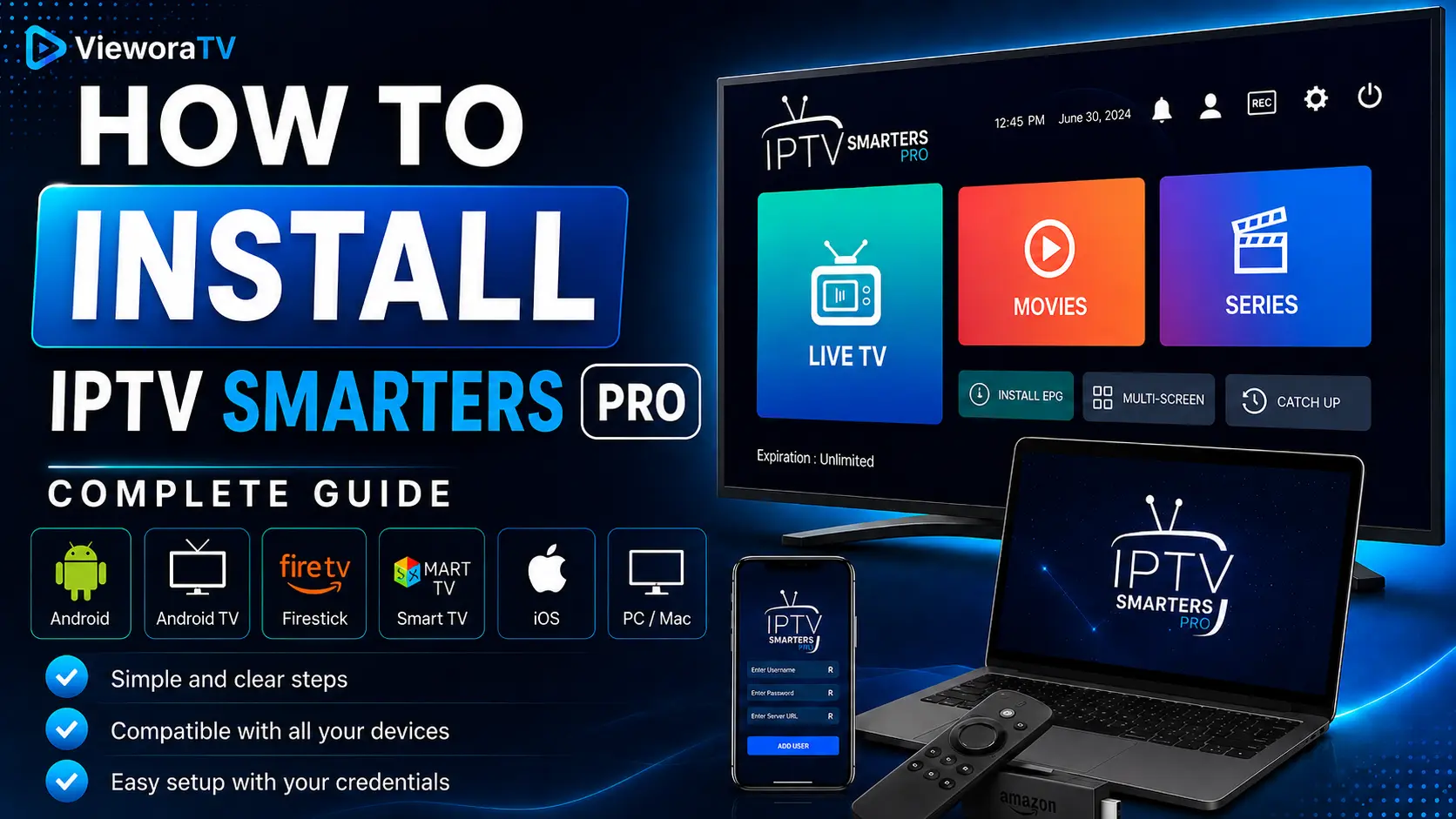
Setting up IPTV Smarters Pro Firestick is one of the most popular ways to stream live TV, sports, movies, and series on a Fire TV Stick or Fire TV Cube. This guide walks you through installing IPTV Smarters Pro Firestick using Downloader, then adding your VieworaTV IPTV login with either Xtream Codes API or an M3U playlist.
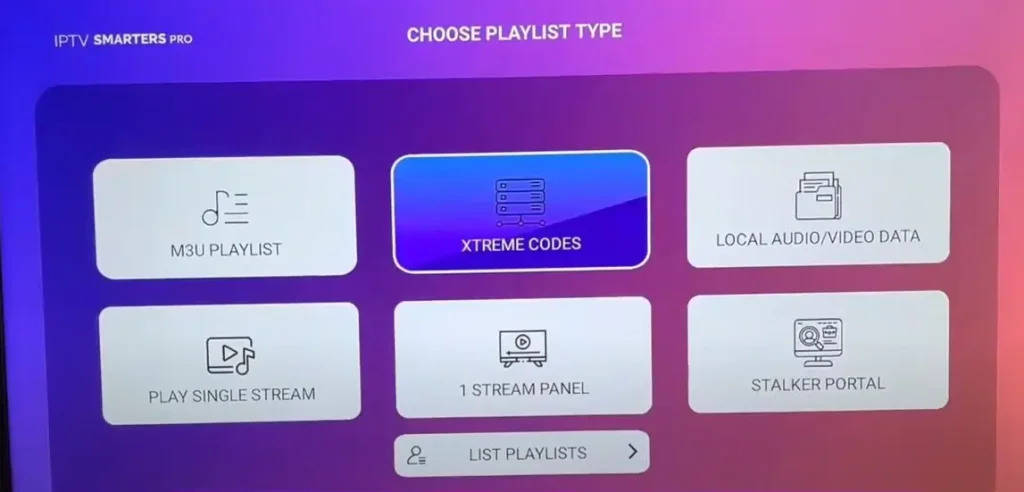
Table of Contents
- What Is IPTV Smarters Pro?
- Why Use IPTV Smarters Pro on Firestick?
- What You Need Before Installing
- Is It Available on the Amazon Appstore?
- How to Install IPTV Smarters Pro on Firestick
- Add Your VieworaTV Login
- Best Settings for IPTV Smarters Pro Firestick
- Fix IPTV Smarters Pro Firestick Not Working
- Smarters Pro vs IBO Player Pro vs TiviMate
- Is IPTV Smarters Pro Firestick Legal?
- FAQs
What Is IPTV Smarters Pro?
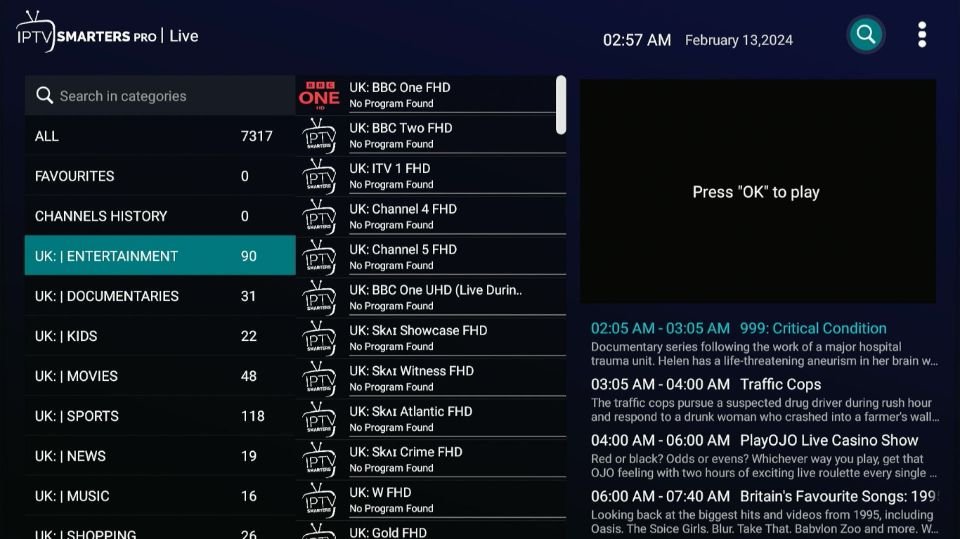
IPTV Smarters Pro is an IPTV player app used to watch live TV, movies, and series. It does not include any channels, movies, series, or playlists by itself. To use it, you need an active IPTV subscription or an authorized playlist. VieworaTV customers can use IPTV Smarters Pro simply by entering their VieworaTV login details once the app is installed.
Why Use IPTV Smarters Pro on Firestick?
- Beginner-friendly, clean interface
- Supports Xtream Codes API login
- Supports M3U playlist login
- Works well for live TV, movies, and series
- Well suited to Firestick and Fire TV devices
- Easy to install using Downloader
- A solid option for VieworaTV IPTV users looking for a simple setup
What You Need Before Installing IPTV Smarters Pro Firestick
- An Amazon Firestick, Fire TV Stick, or Fire TV Cube
- A stable internet connection
- An Amazon account signed in on the device
- The Downloader app
- The IPTV Smarters Pro APK from an official or trusted source
- Your VieworaTV server URL
- Your VieworaTV username
- Your VieworaTV password
- Optional: an M3U playlist URL, if that’s your preferred login method
Is IPTV Smarters Pro Available on the Amazon Appstore?
Availability can depend on your country, Firestick model, and Amazon Appstore region. In many regions, IPTV Smarters Pro is not listed in the Amazon Appstore, so users install it using the Downloader app instead. If you go this route, only use official or trusted sources for the APK — avoid random third-party APK websites, since these can carry modified or unsafe files.
How to Install IPTV Smarters Pro on Firestick
Step 1: Install Downloader on Firestick
- Go to the Firestick home screen
- Select Find
- Select Search
- Type Downloader
- Choose Downloader by AFTVnews
- Click Get or Download
- Open Downloader once installed
Step 2: Enable Install Unknown Apps
- Go to Settings
- Select My Fire TV
- Open Developer Options
- Select Install Unknown Apps
- Turn Downloader ON
Step 3: Download IPTV Smarters Pro APK
Open Downloader, enter the official or trusted IPTV Smarters Pro APK URL, and download the file. Avoid random APK websites that aren’t clearly linked to the official app.
Step 4: Install IPTV Smarters Pro
- Click Install
- Wait for the installation to finish
- Click Done
- Delete the APK file to save Firestick storage
- Open IPTV Smarters Pro
How to Add Your VieworaTV IPTV Login to IPTV Smarters Pro Firestick
Option 1: Login with Xtream Codes API
Open IPTV Smarters Pro and choose Login with Xtream Codes API. Enter any profile name you like, for example “VieworaTV,” then enter your server URL, username, and password. Click Add User and wait for your live TV, movies, and series to load.
Option 2: Login with M3U Playlist URL
Choose Load Your Playlist or File/URL instead. Enter a playlist name, paste your VieworaTV M3U URL, and save. Wait a moment for your playlist to load fully.
Watch: IPTV Smarters Pro Firestick Video Tutorial
Prefer to follow along visually? This video covers installing and setting up IPTV Smarters Pro step by step:
Best Settings for IPTV Smarters Pro Firestick
- Enable the hardware decoder in settings, if available
- Use 5GHz Wi-Fi instead of 2.4GHz where possible
- Restart your Firestick before major live sports events
- Clear the app cache when needed
- Keep at least 1GB of free storage on your device
- Use an Ethernet adapter for the most stable connection
- Keep IPTV Smarters Pro updated to the latest version
- Restart your router if buffering happens
How to Fix IPTV Smarters Pro Firestick Not Working
IPTV Smarters Pro App Not Opening
Force stop the app under Settings > Applications, then reopen it. If it still won’t open, restart your Firestick or reinstall the app.
Login Details Not Accepted
Double-check your server URL, username, and password for typos or extra spaces, and confirm your VieworaTV subscription is active.
Playlist Not Loading
Reload the playlist from your provider’s portal, then restart the app after re-adding your login details.
Channels Not Opening
If only a few channels fail, the issue is usually on the provider’s server side. If every channel fails, restart the app and check your subscription status.
Buffering or Freezing
Test your internet speed, switch to 5GHz Wi-Fi or Ethernet, and restart your router. Closing background apps can also help.
Audio but No Video
Try switching between the hardware and software decoder in the app’s playback settings, and confirm your Firestick’s software is up to date.
For more detailed troubleshooting on a similar player, see our guide: Fixing IBO Player Pro Not Working.
IPTV Smarters Pro Firestick vs IBO Player Pro Firestick
| App | Best For | Login Method | Beginner Friendly | Notes |
|---|---|---|---|---|
| IPTV Smarters Pro | Free, widely used, feature-rich | Xtream Codes API / M3U | Yes | Not on Amazon Appstore in most regions; sideload with Downloader |
| IBO Player Pro | Simple, reliable everyday streaming | Xtream Codes API / M3U | Yes | Requires separate app activation with Device ID/Key — see our IBO Player Pro Firestick guide |
| TiviMate | Advanced EPG and customizable interface | Xtream Codes API / M3U | Moderate | More setup options, better suited to experienced users |
Is IPTV Smarters Pro Firestick Legal?
IPTV Smarters Pro is a media player, and Firestick is a streaming device — neither one determines legality on its own. Legality depends on the source of the IPTV content and the rights attached to the playlist you use. Always use IPTV services and playlists you are authorized to access.
Need an IPTV Login for IPTV Smarters Pro Firestick?
VieworaTV provides stable servers, fast support, and simple setup for IPTV Smarters Pro Firestick.
Looking for IPTV Smarters Pro Firestick in the UK?
VieworaTV is focused on IPTV tutorials and setup guides for Canada and international users. If you are based in the United Kingdom, visit TVPrime4K for UK IPTV Firestick setup help, Smart TV guides, and free trial options.
IPTV Smarters Pro Firestick FAQs
Can I install IPTV Smarters Pro on Firestick?
Yes. IPTV Smarters Pro Firestick installation is done by sideloading the app using the Downloader tool, since it isn’t available in the Amazon Appstore in most regions.
Is IPTV Smarters Pro available on the Amazon Appstore?
Availability varies by country and device model, but in most regions it is not listed, so Downloader is used to sideload it instead.
Does IPTV Smarters Pro include channels?
No. IPTV Smarters Pro is only a media player and does not include any channels, movies, or series by itself. You need your own IPTV subscription.
What login details do I need for IPTV Smarters Pro Firestick?
You’ll need either your Xtream Codes Server URL, Username, and Password, or an M3U playlist URL, both provided with your VieworaTV subscription.
Can I use VieworaTV with IPTV Smarters Pro?
Yes. VieworaTV works with IPTV Smarters Pro using either Xtream Codes API or M3U login, whichever you prefer.
Why is IPTV Smarters Pro not working on Firestick?
This is usually caused by incorrect login details, an expired subscription, a weak internet connection, or an outdated app version. Work through the troubleshooting steps above to isolate the cause.
Why is IPTV Smarters Pro buffering?
Buffering is almost always related to internet speed or Wi-Fi signal. Switching to 5GHz Wi-Fi or Ethernet and restarting your router usually resolves it.
Is IPTV Smarters Pro Firestick legal?
IPTV Smarters Pro itself is a legal media player. Legality depends on the source of the content and playlist you use, so only use subscriptions you are authorized to access.
Conclusion: Set Up IPTV Smarters Pro Firestick with VieworaTV
Getting IPTV Smarters Pro Firestick running takes just a few minutes: install Downloader, enable unknown apps, install IPTV Smarters Pro, add your VieworaTV login, and restart the app. From there, you’re ready to watch live TV, sports, movies, and series.
Explore more setup guides for installing IPTV on Firestick, IBO Player Pro on Firestick, and our full IPTV setup guide. Canadian viewers can also check our IPTV Canada page, and UK viewers can find equivalent help at TVPrime4K.com.
