
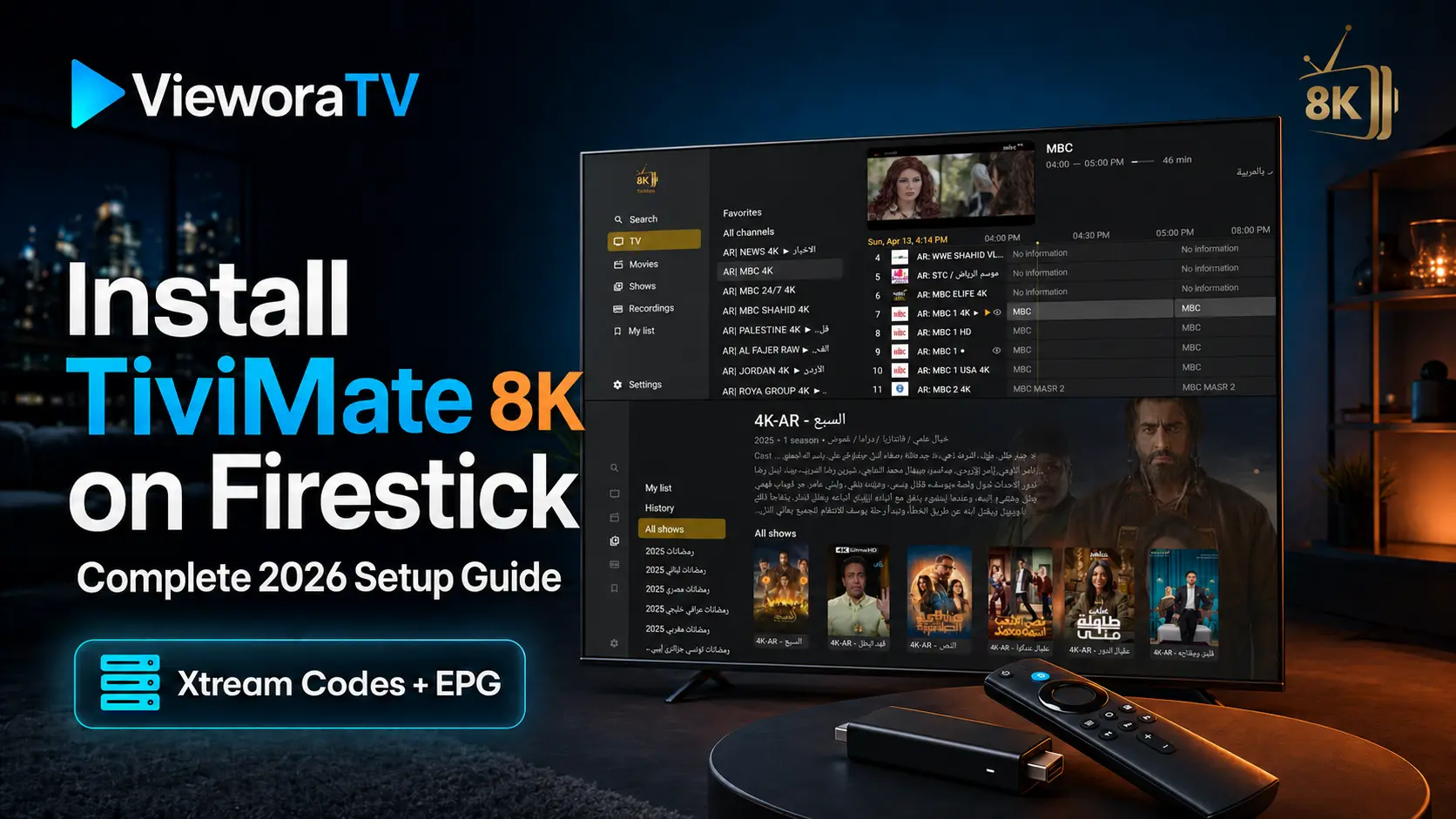

Want to install TiviMate 8K on Firestick and turn your Amazon Fire TV device into a clean, easy-to-navigate IPTV setup? This updated 2026 VieworaTV guide takes you through the complete process: installing the custom TiviMate 8K IPTV Player, adding a compatible playlist with Xtream Codes, loading the TV guide and fixing common setup problems.
New to streaming apps? Start with our broader IPTV on Firestick setup guide to compare compatible players and understand the complete Fire TV installation process.
TiviMate 8K is popular with Firestick and Android TV users because it is designed for large screens and remote controls. It supports M3U playlists, Xtream Codes, multiple playlists, favourites, search, EPG, catch-up, recording, parental controls and multiview. Some of these features require TiviMate 8K Premium, and availability can also depend on your playlist provider and device.
Important: TiviMate 8K is a media player only. It does not provide channels, movies, series or subscriptions. You must add your own legal playlist from a compatible provider. VieworaTV does not host or distribute television streams.
Quick Answer: How to Install TiviMate 8K on Firestick
- Install Downloader from the Amazon Appstore.
- Enable Install unknown apps for Downloader.
- Open Downloader and enter the TiviMate 8K download code 5811661.
- Download and install the TiviMate 8K APK.
- Open TiviMate 8K and choose Add playlist.
- Select Xtream Codes and enter the server address, username and password supplied by your provider.
- Wait for the playlist and EPG to load, then organise your favourite channels.
What You Need Before Starting
- An Amazon Fire TV Stick, Fire TV Cube or compatible Android TV device
- A stable internet connection
- The free Downloader app
- A valid M3U playlist or Xtream Codes login from an authorised provider
- Approximately 10–15 minutes
If you do not yet have compatible login details, VieworaTV readers can request a free 24-hour TVPrime4K trial to test their device before choosing a paid plan.
TiviMate 8K and Your IPTV Provider Are Not the Same Thing
| Service | Purpose |
|---|---|
| TiviMate 8K | An IPTV player that organises and plays a compatible playlist on Android TV and Fire TV devices. |
| Playlist provider | Supplies the server address, username, password or M3U URL entered inside the player. |
Paying for TiviMate 8K Premium unlocks additional app features. It does not include a playlist or access to channels.
If you prefer a different interface, compare this app with our IPTV Smarters Pro Firestick guide or the beginner-friendly IBO Player Pro Firestick tutorial.
Step 1: Install Downloader on Firestick
Downloader is a browser and file-downloading app commonly used to install an official APK that is not listed in a regional Amazon Appstore.
- From the Fire TV home screen, select Find or the Search icon.
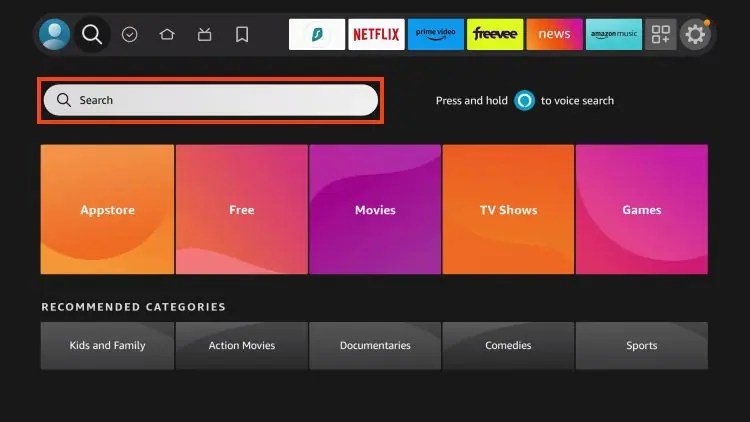
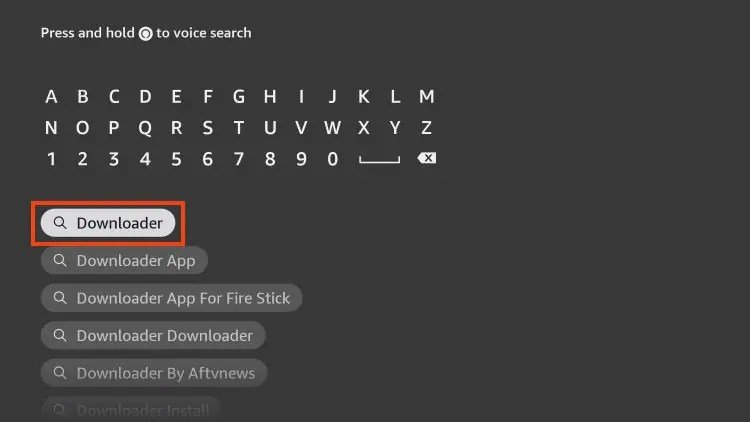
- Search for Downloader.
- Select the orange Downloader app published by AFTVnews.com.
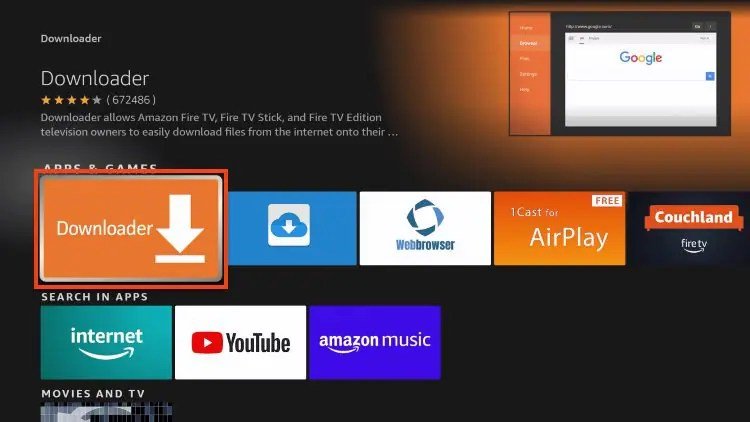
- Choose Get or Download.
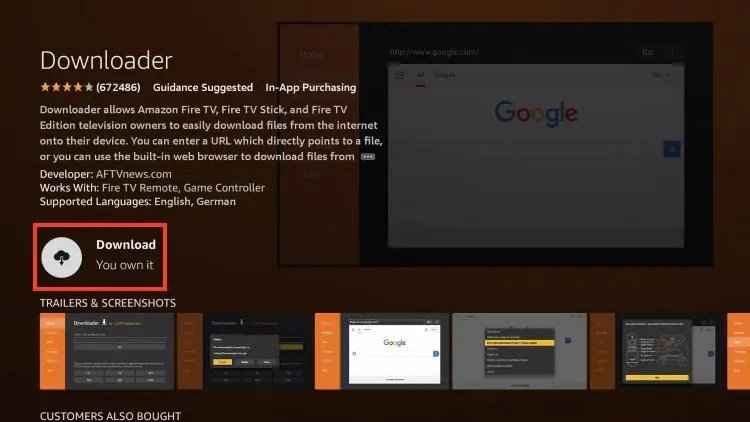
- Open Downloader after the installation finishes.
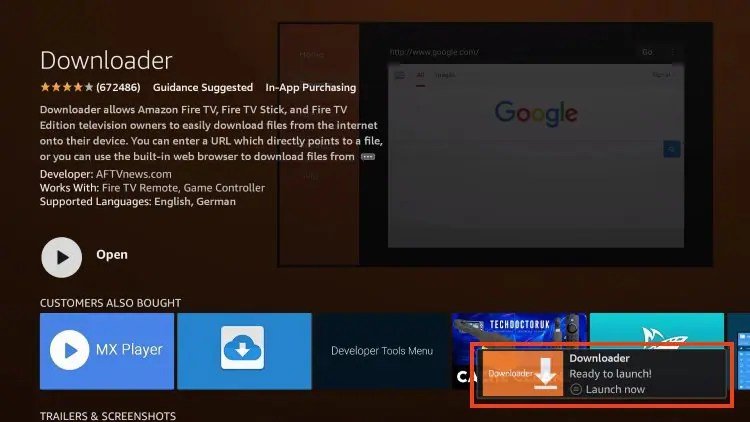
If Downloader asks for permission to access files, select Allow. Dismiss its introductory message to reach the URL field.
Step 2: Enable Install Unknown Apps
Fire TV blocks installation from outside the Amazon Appstore by default. Give Downloader temporary permission to install the TiviMate 8K APK:
- Open Settings from the Fire TV home screen.
- Select My Fire TV.
- Open Developer Options.
- Select Install unknown apps.
- Find Downloader and switch it to On.
Developer Options Not Showing?
Some Fire TV software versions hide this menu. You can reveal it in a few seconds:
- Go to Settings > My Fire TV > About.
- Highlight the name of your Fire TV device.
- Press the centre/select button on the remote seven times.
- Wait for the developer confirmation message.
- Press Back and open Developer Options.
- Choose Install unknown apps and set Downloader to On.
This seven-click method is also documented in Amazon’s official Fire TV developer guidance.
Step 3: Download and Install the TiviMate 8K APK
- Open Downloader.
- Select its browser or URL field.
- Enter the TiviMate 8K download code 5811661 and select Go.
- Alternatively, enter the short URL nz.sa/m8k.
- Wait 4–6 seconds on the redirect page. If the download does not begin automatically, select the download link.
- Wait for the TiviMate 8K APK to finish downloading.
- When the Fire TV installer appears, select Install.
- Choose Done after installation.
- Return to Downloader and delete the APK file to recover storage space.
Security tip: Use only the TiviMate 8K download code and short URL published in this VieworaTV guide. Avoid copies from unrelated websites or unknown download codes.
After installation, you can return to Settings > My Fire TV > Developer Options > Install unknown apps and switch Downloader back to Off.
Step 4: Add Your Playlist with Xtream Codes
Keep the activation email or message from your playlist provider open. You normally need three pieces of information: a server address, username and password.
- Open TiviMate 8K.
- Select Add playlist.
- Choose Xtream Codes.
- Enter the server address, including
http://orhttps://if supplied. - Enter your username and password exactly as provided.
- Enable Include VOD if you want supported movies and series to appear.
- Select Next and wait for TiviMate 8K to process the playlist.
- Name the playlist—for example, TVPrime4K—and select Done.
The first import can take several minutes when a playlist and programme guide contain a large amount of data. Keep the app open until it finishes.
How to Add an M3U Playlist Instead
If your provider sent one complete M3U URL, select Add playlist > M3U playlist, enter the full link, choose a playlist name and continue. Xtream Codes is often easier because its server address, username and password are entered in separate fields.
Step 5: Update the EPG and Organise Channels
- Open Settings > EPG.
- Select Update EPG.
- Return to Live TV and allow the guide data to populate.
- Long-press the centre/select button on a channel to add it to Favourites.
- Hide unwanted groups or reorder categories from the playlist settings.
Creating a short favourites list makes TiviMate 8K faster to navigate, especially when your provider includes many regional categories.
Recommended TiviMate 8K Settings for Firestick
- Automatic playlist updates: Enable scheduled updates so provider changes appear automatically.
- EPG updates: Refresh the TV guide on app start if schedules regularly appear empty.
- Favourites: Bookmark frequently watched channels instead of searching every category.
- Parental controls: Protect restricted groups with a PIN when the Firestick is shared.
- Recording location: Select storage with enough free space before scheduling a recording.
- External player: Test a compatible external player only when a particular stream has a codec or playback problem.
Recording, catch-up and EPG functions depend on the playlist, source stream and available device storage. Multiview also requires sufficient Firestick performance and enough simultaneous connections from your provider.
Using TiviMate 8K with TVPrime4K
For readers who need a compatible subscription, VieworaTV recommends testing TVPrime4K. Its credentials can be added to TiviMate 8K through Xtream Codes, and setup assistance is available by WhatsApp or email.
- Compatible Xtream Codes and M3U login options
- Live TV, movies and series organised inside supported players
- EPG support where programme information is available
- Plans for one, two or three simultaneous screens
- Free 24-hour trial for testing device and network compatibility
- Setup support through WhatsApp and email
Plans currently start from £9.99. Content, quality and availability can vary by region, plan, device and source. If several devices will stream at the same time, select a multi-connection plan; installing one login on several devices does not automatically allow simultaneous viewing.
Troubleshooting TiviMate 8K on Firestick
“Invalid Details” or “Error Adding Playlist”
- Re-enter the server URL, username and password exactly as supplied.
- Remove accidental spaces before or after each field.
- Check that the server address includes the correct protocol and port.
- Remember that usernames and passwords can be case-sensitive.
- Confirm that the trial or subscription is still active.
If the same credentials fail in another compatible player, contact the provider and ask them to verify the account.
Channels Load but Do Not Play
- Restart TiviMate 8K and the Firestick.
- Make sure another device is not already using a one-connection subscription.
- Test several channels to see whether the problem affects one source or the complete playlist.
- Restart the router and test the internet connection.
- Ask the provider to check the account and server status.
Buffering or Freezing
- Move the Firestick closer to the router or connect to 5 GHz Wi-Fi.
- Use a compatible Ethernet adapter where practical.
- Pause downloads, cloud backups and other heavy network activity.
- Restart both the router and Firestick.
- Open Settings > Applications > Manage Installed Applications > TiviMate 8K > Clear cache.
- Test a lower-resolution stream to determine whether bandwidth is the cause.
Do not select Clear data unless you are prepared to add your playlist and settings again.
EPG Is Empty or Incorrect
Open Settings > EPG > Update EPG. Check that the correct EPG source is assigned to the playlist. When only a few channels are missing information, guide data may not be available for those channels.
TiviMate 8K Is Missing from the Home Screen
Open Apps & Channels, highlight TiviMate 8K, press the menu button on the remote and choose Move to front.
Recording Does Not Work
Check available storage, app permissions and the selected recording folder. Some Firestick models have limited internal space, making compatible external or network storage more practical. The source stream must also remain available for the full recording period.
Frequently Asked Questions
Is TiviMate 8K Free?
TiviMate 8K offers basic functionality, while TiviMate 8K Premium unlocks additional player features. Neither option includes channels, movies or an IPTV subscription.
What Is TiviMate 8K?
TiviMate 8K is a custom IPTV player built for a straightforward Firestick and Android TV setup. It organises compatible live TV and VOD playlists but does not include a subscription or media content by itself.
Does TiviMate 8K Work on Firestick?
Yes. TiviMate 8K is designed for television screens and remote-control navigation. If it is unavailable in your regional Amazon Appstore, install the TiviMate 8K APK with Downloader using code 5811661.
Where Do I Get the Server URL, Username and Password?
Your playlist provider sends these details after activating a trial or paid subscription. Copy every field exactly and never share your credentials or complete playlist URL publicly.
Can I Use One Subscription on Several Devices?
You can usually configure the login on compatible devices, but simultaneous streaming requires the correct number of connections. Choose a two- or three-screen plan if several devices will stream at the same time.
Does TiviMate 8K Include a VPN?
No. TiviMate 8K is an IPTV player and does not include a built-in VPN service.
Can I Install TiviMate 8K on iPhone, iPad or Apple TV?
The TiviMate 8K app is designed for Firestick and Android TV devices and is not optimised for Apple phones, tablets or Apple TV. Apple users should choose a compatible iOS or tvOS IPTV player.
Is IPTV Legal?
IPTV is a delivery technology and is legal in itself. The legality of particular streams depends on content licensing, the provider and your location. Only use playlists and services authorised to distribute the content you watch.
Final Thoughts
Installing TiviMate 8K on Firestick is straightforward when you use the verified download code and valid playlist credentials. Downloader handles the installation, while TiviMate 8K’s Xtream Codes option makes adding a compatible service quick and simple.
For the best experience, organise your favourites, keep the playlist and EPG updated, use a stable network and match your subscription’s connection limit to the number of screens streaming at the same time.
Explore the VieworaTV tutorial library for more Firestick, Smart TV and IPTV player setup guides.
If you still need compatible credentials, start with a free 24-hour TVPrime4K trial or compare available TVPrime4K plans.
Editorial disclosure: VieworaTV publishes setup guides for streaming devices and media players. TiviMate 8K is a custom player featured in this guide and does not include channels or media content by itself. Amazon Fire TV is a trademark of Amazon, and VieworaTV is not affiliated with Amazon. Commercial links may lead to a recommended third-party service.
