
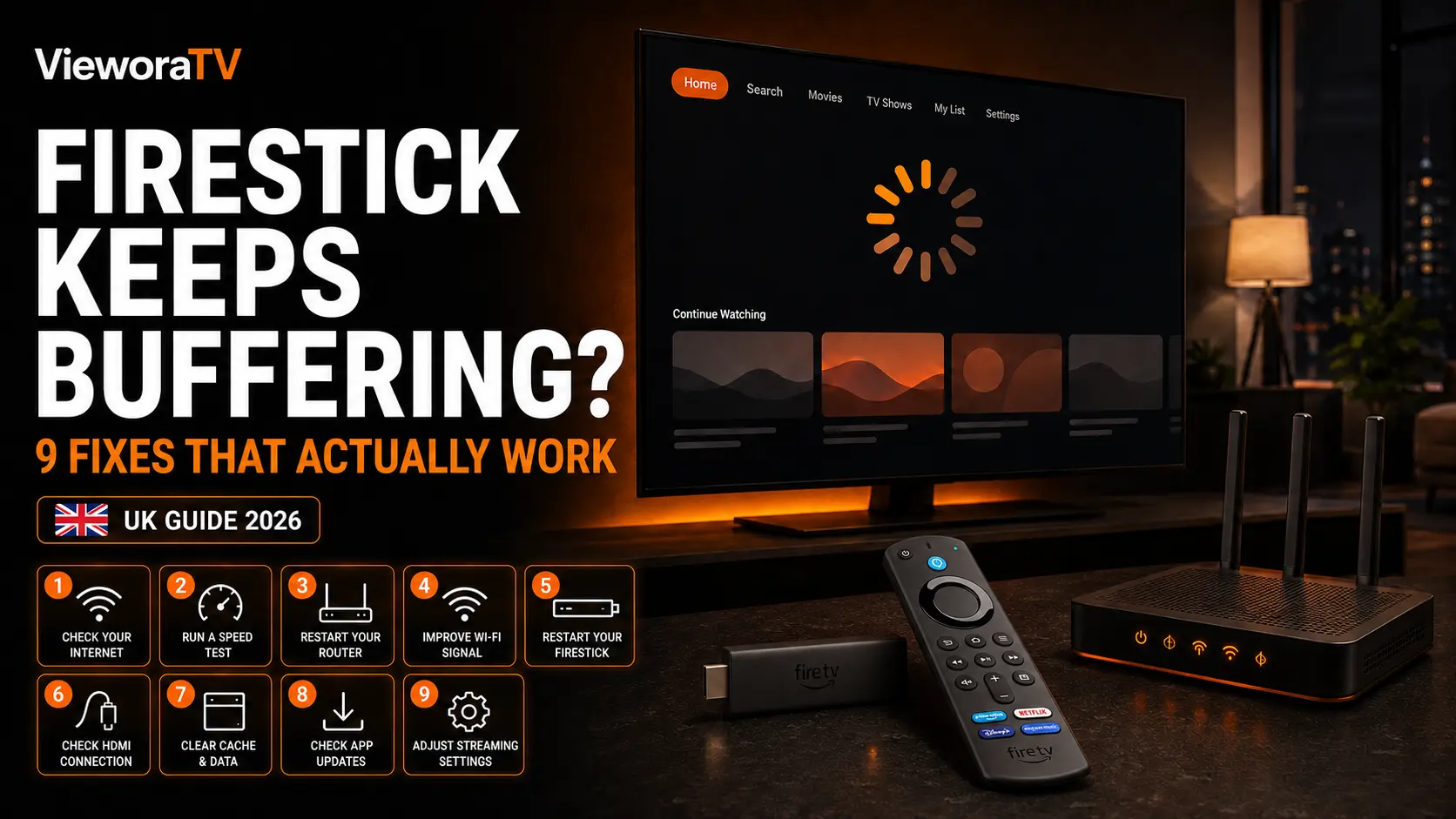

Last updated: July 2026
If your Firestick keeps buffering, the cause is almost always one of six things: an unstable internet connection, weak Wi-Fi, a bloated app cache, low storage, outdated software, or overheating. Sometimes the problem sits with a single app or streaming source rather than the device.
The good news: nearly all of these causes can be diagnosed and fixed at home without replacing your Firestick. This guide walks through nine fixes in the order a technician would actually try them.
Why Does My Firestick Keep Buffering?
Your Firestick keeps buffering when it can’t download video data as fast as it plays it — the player pauses, refills its buffer, then resumes. The most common culprits:
- Slow or inconsistent internet that dips below what the stream needs
- Weak Wi-Fi signal between the router and the Firestick
- Network congestion at peak hours, or too many connected devices
- Corrupted or oversized app cache
- Low storage — Fire OS struggles when nearly full
- Background apps consuming memory and bandwidth
- Outdated Fire OS or app versions
- Overheating, which makes the device throttle itself
- App, server or content-source problems on the provider’s end
- Older Firestick hardware struggling with modern apps

Quick Diagnostic Table: Find Your Fault in 60 Seconds
If your Firestick keeps buffering in one of these patterns, jump straight to the fix you need.
| Symptom | Most likely cause | Quick test | Recommended section |
|---|---|---|---|
| Every app buffers on every device in the house | Router or ISP issue | Speed test on a phone in the same room | Fix 1 and Fix 2 |
| Every app buffers, but only on the Firestick | Device or Wi-Fi signal issue | Stream on a phone next to the TV | Fix 3, Fix 5, Fix 7 |
| Only one app buffers | App cache or app-side problem | Open a different streaming app | Fix 4 and Fix 6 |
| Only one live channel or video buffers | Content source or server issue | Try other content in the same app | IPTV section |
| Buffering mainly during peak evening hours | Network congestion | Test the same stream in the morning | Fix 2 and Fix 7 |
| Buffering starts after long viewing sessions | Overheating or memory pressure | Is the device unusually hot? | Fix 8 and Fix 5 |
| Buffering despite a strong speed-test result | Latency, interference or source issue | Same content on another device | Fast internet section |
How Much Internet Speed Does Streaming Actually Need?
Requirements vary by app and content, but these are practical working figures:
| Quality | Recommended stable speed |
|---|---|
| SD (480p) | 3 Mbps or more |
| HD (720p) | 5 Mbps or more |
| Full HD / live streaming (1080p) | 10 Mbps or more, for comfortable headroom |
| 4K Ultra HD | At least 15 Mbps; 25 Mbps or more preferred on a shared network |
Two caveats. First, Amazon’s official 4K Fire TV requirements specify at least 15 Mbps for 4K playback — the higher figures above are practical recommendations, not Amazon requirements. Second, these speeds must be stable at the Firestick, not just at the router; a fast connection at the router can arrive badly degraded behind a TV two floors away.
Fix 1: Restart the Firestick and Home Network
Why it helps: A restart clears memory, closes background processes and forces a fresh connection to the router — the highest-value fix for temporary glitches.
Menu path: Settings → My Fire TV (or Device & Software) → Restart.
- From the home screen, open Settings.
- Select My Fire TV (labelled Device & Software on some models).
- Choose Restart and wait for the device to reboot.
Alternatively, hold Select and Play/Pause for several seconds — though this shortcut varies by device generation, so the Settings menu is the reliable route. Then power-cycle the network: unplug the modem and router, wait 30 seconds, plug the modem in first, let its lights stabilise, then power on the router.
How to check it worked: Play the problem content for at least ten minutes.
Fix 2: Test the Connection and Reduce Network Congestion
Why it helps: Often a Firestick keeps buffering because other devices and downloads are quietly consuming bandwidth — not because of the Firestick at all.
- Test a second app on the Firestick, then test another device in the same room.
- Run a speed test with Fast.com or another reputable tool, next to the TV.
- Pause large downloads, cloud backups and console updates.
- Temporarily disconnect unused devices.
- Test at different times of day — evening congestion is real.
Don’t assume bandwidth is the whole story — latency, packet loss and interference can ruin a stream even when the speed number looks healthy (see the fast internet section).
How to check it worked: Smooth streams with other devices paused means congestion was the problem.
Fix 3: Improve the Firestick Wi-Fi Connection
Why it helps: The Firestick sits behind a metal-backed TV panel — one of the worst places for Wi-Fi reception.
- Choose the right band. 5GHz is usually faster at short range; 2.4GHz reaches farther and passes through walls better. Neither is universally better — a solid 2.4GHz signal can beat a weak 5GHz one.
- Reposition the router: open, elevated, central — never inside a cabinet.
- Use the bundled HDMI extender to move the Firestick away from the TV’s rear panel, improving both signal and cooling.
- Reconnect after changes: Settings → Network.

How to check it worked: Compare speed tests at the Firestick before and after repositioning.
Fix 4: Clear the Affected App’s Cache
Why it helps: A bloated or corrupted cache is the most common software reason a Firestick keeps buffering — streaming apps accumulate temporary files over weeks of use.
Menu path: Settings → Applications → Manage Installed Applications → select the app → Clear Cache.
Force Stop (same menu) fully closes a hung app so it restarts fresh. If you use a dedicated player, our TiviMate Firestick setup guide covers configuring it cleanly from scratch.

How to check it worked: Reopen the app and replay the problem content.
Fix 5: Free Storage and Close Unnecessary Apps
Why it helps: A nearly full Firestick runs slowly everywhere — menus lag, apps stall, playback suffers.
- Check space: Settings → My Fire TV (or Device & Software) → About → Storage (menu names vary by Fire OS version).
- Uninstall unused apps under Settings → Applications → Manage Installed Applications.
- Remove finished downloads and clear cache on your largest apps individually.
- Restart the Firestick after freeing space.
Avoid third-party “cleaner” apps — they rarely help and often run their own background processes.
How to check it worked: Keep at least 1–2 GB free, then retest.
Fix 6: Update Fire OS and Streaming Apps
Why it helps: Outdated firmware and apps cause playback bugs, compatibility problems and freezing that no network tuning will fix.
Menu path: Settings → My Fire TV (or Device & Software) → About → Check for Updates (or Check for System Update).
- Install any available Fire OS update and let the device restart.
- Update your streaming apps, installing only from official or trusted sources.
Amazon’s guide to updating Fire TV software covers variations if your menu looks different.

How to check it worked: Replay the problem content after both updates.
Fix 7: Use Ethernet When Wi-Fi Remains Unstable
Why it helps: When a Firestick keeps buffering on Wi-Fi, a wired connection removes interference and signal drops entirely. Stability matters more than peak speed — a steady 25 Mbps over Ethernet streams better than Wi-Fi swinging between 10 and 80 Mbps.
- Choose a Fire TV Ethernet adapter confirmed compatible with your exact Firestick model — compatibility varies by generation.
- Connect it between the Firestick, its power supply and your router.
- Confirm a wired connection under Settings → Network.
Be realistic: Ethernet solves Wi-Fi problems. It won’t help with an overloaded broadband line, a struggling server, or a fault inside one app.
How to check it worked: Compare the same stream over Wi-Fi and Ethernet at peak hours.
Fix 8: Prevent Overheating and Check the Power Supply
Why it helps: A hot Firestick slows itself down to protect its components, and underpowering it causes similar instability.
If the Firestick keeps buffering only after long viewing sessions, heat is the likely cause.
- Use the supplied wall adapter — a TV USB port often can’t deliver enough power.
- Use the HDMI extender to move the stick away from the TV’s hot rear panel.
- Keep it ventilated — never covered or sealed inside a closed cabinet.
- If it’s unusually hot, unplug it and let it cool before testing again.
Never open or physically modify the Firestick — there are no user-serviceable parts inside.
How to check it worked: If buffering used to start an hour into viewing and now doesn’t, heat was the culprit.
Fix 9: Reset the App or Firestick — Only as a Last Resort
Why it helps: Reinstalling gives a broken app a clean start; a factory reset clears deep software faults when the whole device misbehaves after everything above.
Start with the app, not the device:
- Uninstall the affected app (Settings → Applications → Manage Installed Applications).
- Restart the Firestick, then reinstall the app from its official source and sign back in.
Factory reset, only if nothing else worked: Settings → My Fire TV → Reset to Factory Defaults. Amazon’s official factory reset guide covers model variations.

How to check it worked: Set up fresh, install only your main app first, and test before reinstalling everything else.
Firestick Keeps Buffering Even With Fast Internet? Here’s Why
When a Firestick keeps buffering despite a fast connection, remember that speed tests measure short bursts of throughput — streaming needs a sustained, consistent flow. These factors can wreck playback even on fast internet:
- Wi-Fi interference between router and Firestick
- High latency or packet loss on the route to the server
- Bloated app cache or low storage
- Server-side congestion at the provider’s end
- A single damaged or overloaded stream
- Overheating that throttles the device
- Old hardware that can’t decode modern streams smoothly
Run this comparison test: play the same content → different app → different device → different network (a mobile hotspot works). Wherever the buffering stops, you’ve found the broken layer.
IPTV Buffering on Firestick: What to Check
If your Firestick keeps buffering only on live IPTV streams, that’s not unusual — live streams are more sensitive to network hiccups than on-demand video, because there’s no large pre-loaded buffer to fall back on. Before troubleshooting: only access channels and playlists you are legally authorized to use.
If only one IPTV app or channel buffers while everything else streams fine:
- Try another channel you’re authorized to access.
- Test the same account on another supported device to rule out the Firestick.
- Restart the player (Force Stop, then reopen).
- Clear the app’s cache — not its data — as shown in Fix 4.
- Try a different built-in player option if the app legally supports it.
- Contact your provider with the affected channel, time, app name and device model — that detail lets them actually investigate.
Resist assuming your ISP is throttling you — most IPTV buffering traces back to the source stream, app configuration or local Wi-Fi. Setting up a player for the first time? Our complete IPTV on Firestick setup guide covers a clean installation step by step.
Player apps also handle unstable streams differently — see our 8K Player VIP Firestick guide for one alternative worth testing.
When Should You Replace the Firestick?
Most buffering is fixable, but hardware ages. If an old Firestick keeps buffering after every fix above, consider replacement when:
- A very old Firestick generation struggles with modern apps.
- Repeated low-storage warnings persist after uninstalling everything non-essential.
- Every app performs poorly after updates and a factory reset.
- There’s visible hardware damage.
- It persistently overheats despite proper ventilation and the correct adapter.
- Every other device on the same connection streams flawlessly.
If none of these apply, keep your money — a monthly restart-and-cache routine keeps most Firesticks healthy for years.
Prevention Checklist: Keep Buffering Away
A Firestick keeps buffering far less often with basic monthly maintenance:
- ✅ Restart the Firestick (and occasionally the router)
- ✅ Check for Fire OS and app updates
- ✅ Uninstall apps you haven’t opened recently
- ✅ Keep at least 1–2 GB of storage free
- ✅ Keep the device ventilated and off the TV’s hot rear panel
- ✅ Keep the router elevated, central and out of cabinets
- ✅ Use Ethernet where practical
- ✅ Test more than one app before blaming the device or your internet
Frequently Asked Questions
Why does my Firestick keep buffering?
If your Firestick keeps buffering, the most common causes are an unstable internet connection, weak Wi-Fi signal, a full app cache, low storage, outdated Fire OS or app versions, overheating, or a problem with the specific app or content source. Restarting the device and router, clearing the affected app’s cache, and testing a second app will usually reveal which of these is responsible.
Why does my Firestick buffer even with good internet?
A strong speed-test result does not guarantee stable streaming. Latency, packet loss, Wi-Fi interference and network congestion can disrupt playback even when raw speed looks fine. The problem can also sit with the app or the streaming server rather than your connection. Test the same content on another device and another app to narrow down the cause.
Is it safe to clear the cache on a Firestick?
Yes. Clearing an app’s cache removes temporary files and normally keeps your login details, settings and playlists intact. It is one of the safest first steps for buffering or freezing. Be careful not to select Clear Data instead, because that resets the app and may sign you out and remove saved configuration.
What internet speed does a Firestick need?
Amazon specifies at least 15 Mbps for 4K playback on Fire TV devices. For SD content, around 3 Mbps is usually enough, HD generally needs 5 Mbps or more, and Full HD or live streams are smoother with 10 Mbps or more of headroom. What matters is the stable speed measured at the Firestick itself, not just at the router.
Is 2.4GHz or 5GHz better for Firestick?
It depends on your home layout. 5GHz is usually faster over short distances and suffers less interference, while 2.4GHz reaches farther and passes through walls better. If your Firestick is close to the router, try 5GHz first. If it sits several rooms away, a stable 2.4GHz connection can outperform a weak 5GHz signal.
Will an Ethernet adapter stop Firestick buffering?
A compatible Fire TV Ethernet adapter often helps when Wi-Fi is the weak point, because a wired connection is more consistent than a fluctuating wireless signal. It will not fix buffering caused by an overloaded broadband line, a struggling streaming server or a problem within one specific app, so diagnose the cause first.
Does a VPN stop buffering on Firestick?
Not automatically. A VPN can sometimes change the network route your traffic takes or help with specific network restrictions, but the encryption overhead can also reduce speed and add latency. It is not a universal buffering fix, and it should only ever be used lawfully and with content you are authorized to access.
Why does only one app or IPTV channel buffer?
When a single app or channel buffers while everything else plays smoothly, the issue is usually with that app or its content source rather than your Firestick or home internet. Clear the app’s cache, restart it, and test the same account on another supported device. If the problem persists, report it to the app or service provider.
When should I factory reset my Firestick?
Only as a last resort, after restarting, clearing cache, freeing storage, updating Fire OS and reinstalling the affected app have all failed. A factory reset removes installed apps, accounts and device settings, so save your login credentials, authorized playlist details and activation information first. If problems continue after a reset, the hardware itself may be the limit.
Conclusion: Fix Firestick Buffering in the Right Order
When your Firestick keeps buffering, work through the fixes in this order: restart → test the connection → improve Wi-Fi → clear cache → free storage → update → Ethernet → cooling and power → reset. The first four steps alone resolve most everyday buffering, and the diagnostic table saves you from fixing things that were never broken.
Legal and safety note: This guide is for general troubleshooting education. Only access apps, channels and playlists you are legally authorized to use, and never open or modify your Firestick or its power supply.
